Import SBI (State Bank of India) Excel bank statement directly to Tally using Synergy Automation. Step-by-step guide.
How to Download SBI Statement as Excel
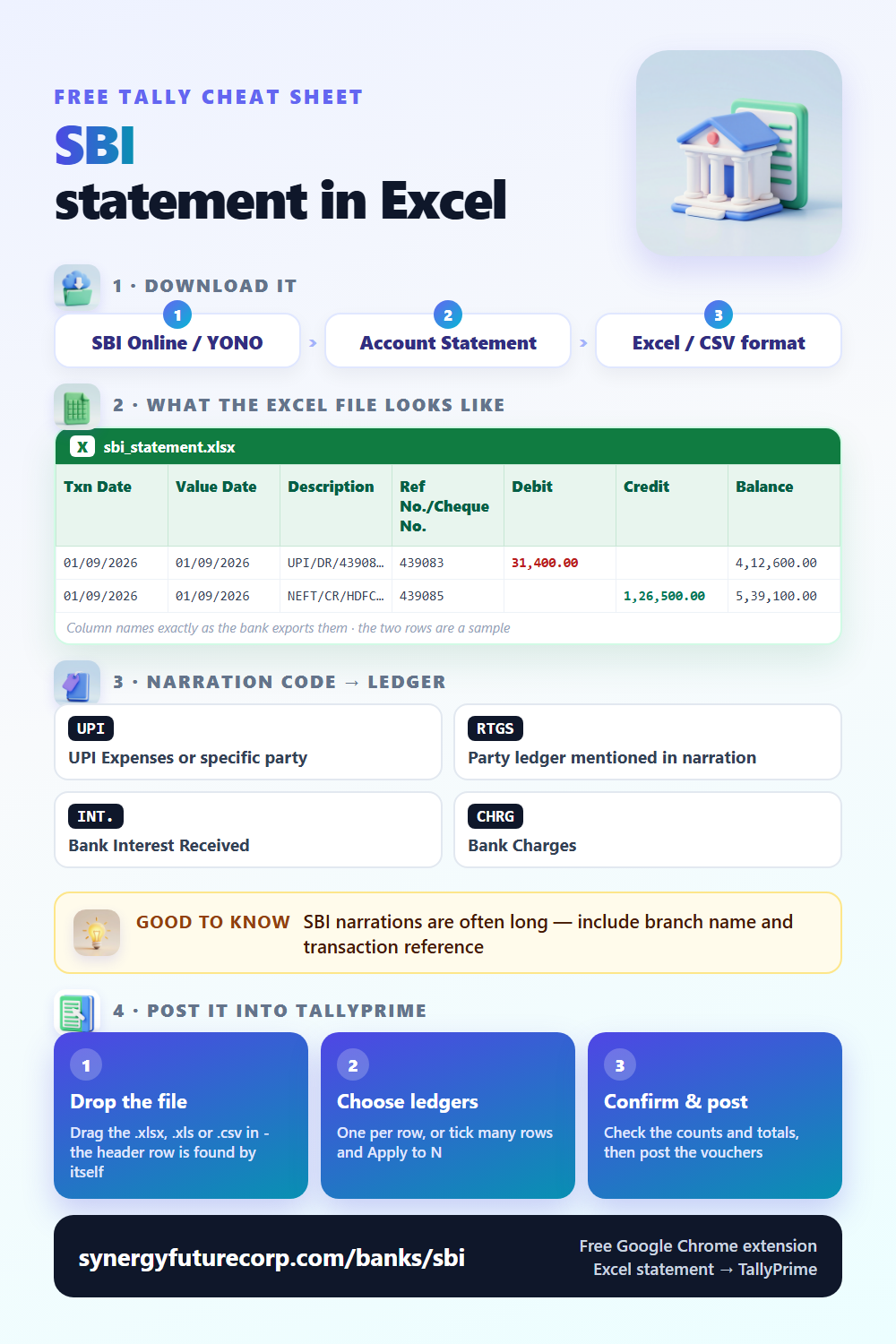
Where to find it: SBI Online / YONO → Account Statement → Excel / CSV format
File format: SBI exports statements via YONO or SBI Online. Columns: Txn Date, Value Date, Description, Ref No./Cheque No., Debit, Credit, Balance.
Step-by-Step: SBI Statement to Tally
- Download your SBI statement
Go to SBI Online / YONO → Account Statement → Excel / CSV format. Select your date range and download as Excel (.xlsx or .xls). Only have the system-generated PDF from net banking? The free Chrome extension reads it directly (beta). - Open Synergy Automation
Make sure Tally is open with the correct company. Make sure the Synergy Connector is running on the same PC. - Upload the Excel file
Drag and drop your SBI Excel file into Synergy Automation. The system auto-detects the format. You will see all transactions parsed and listed. - Review every entry
Check narrations, amounts, dates. Assign Tally ledger accounts. Skip any entries you do not want in Tally. - Post to Tally
Click Post. Entries appear instantly in your open Tally company as bank payment and receipt vouchers. No XML, no file, no import dialog.
SBI-Specific Notes
- SBI narrations are often long — include branch name and transaction reference
- SBI CSV exports sometimes have extra header rows — use the Excel (.xlsx) download from net banking for cleanest results
- A statement printed or scanned at the SBI branch cannot be read — download it from SBI Online / YONO instead, as Excel or as the PDF. The free Chrome extension reads that net banking PDF directly (beta), and our free Bank statement PDF to Excel page turns it into Excel
- Passbook entries and digital statement may differ in narration format
Common Ledger Assignments for SBI Transactions
| Narration Contains | Suggested Tally Ledger |
|---|---|
UPI | UPI Expenses or specific party |
RTGS | Party ledger mentioned in narration |
INT. | Bank Interest Received |
CHRG | Bank Charges |
ATM | Cash Account |
Use these as a reference when assigning ledgers in the review table before posting to Tally.
Frequently Asked Questions
Q: Does Synergy Automation work with SBI statement format?
Yes. Synergy Automation automatically detects the SBI Excel statement format and parses columns correctly. No manual column mapping needed.
Q: Do I need to convert SBI statement to XML before importing to Tally?
No. Synergy Automation posts entries directly from Excel to Tally — no XML file is created or needed. This is faster and simpler than traditional XML import methods.
Q: Is this free for SBI statements?
Yes. Synergy Automation is free to use. No limits on banks, entries, or companies.