Nothing leaves your computer
Your bank statements, your ledgers, your clients’ names and every amount — all of it stays on your computer. None of it is sent to us, and none of it is sent to anyone else. Your clients trust you with their books; you can keep that promise.
And you don’t have to take our word for it. Before you install, Chrome shows you what this extension can reach: the Tally on your computer, and nothing else. It can’t see the websites you visit.
Made to take the load off you
Month end already asks a lot of you. Client calls, returns to file, a reconciliation that won’t tie up — and then a pile of bank statements waiting to be typed into Tally, one line at a time.
That typing is the part we took away. You bring the statement, you decide the ledgers, and your entries are in Tally before you know it. The judgement stays yours. The drudgery doesn’t.
How it works
If Tally’s connection setting is already on, you can go from adding the extension to seeing your first entries in Tally in under a minute. Never switched that setting on? Give it a few extra minutes the first time — we show you exactly where it is, and you only ever do it once.
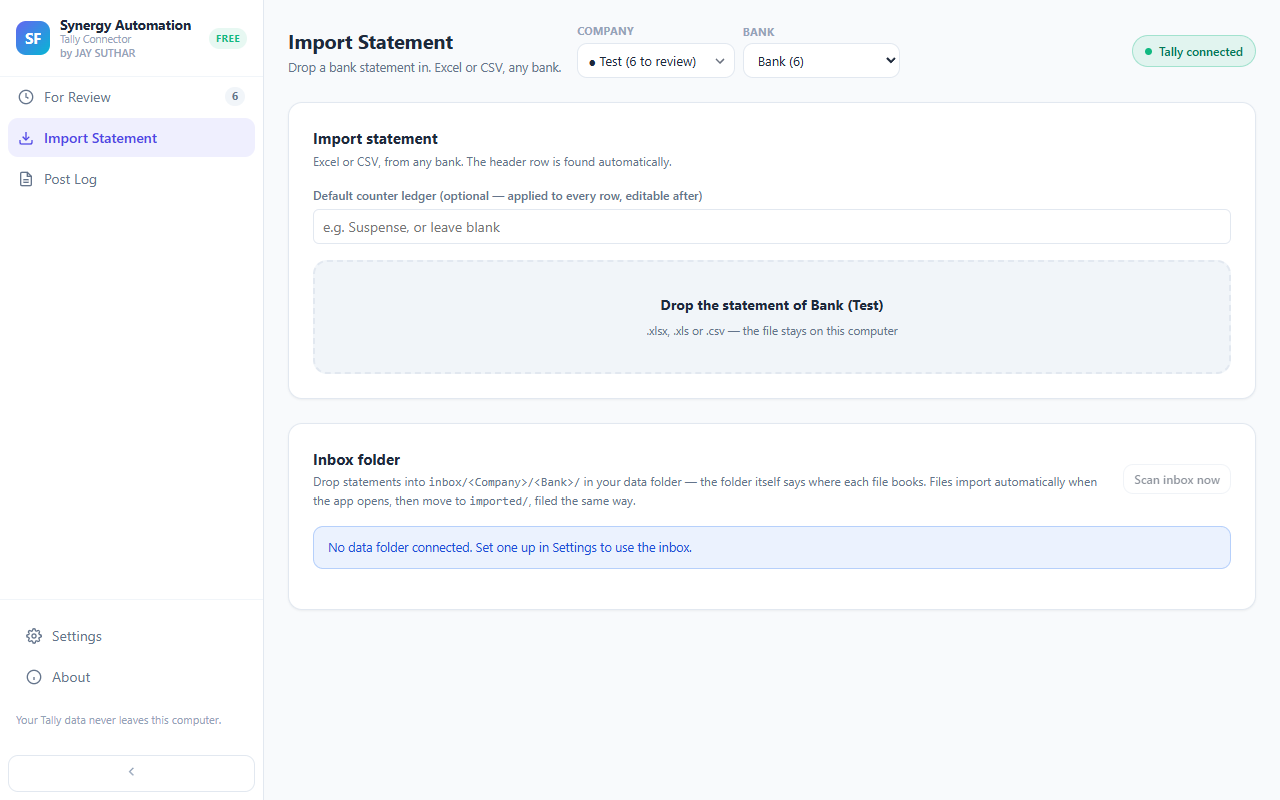
- Import — Drop in the Excel or CSV statement your bank gave you. Whatever its layout, your entries are lined up and waiting for you in a jiffy.
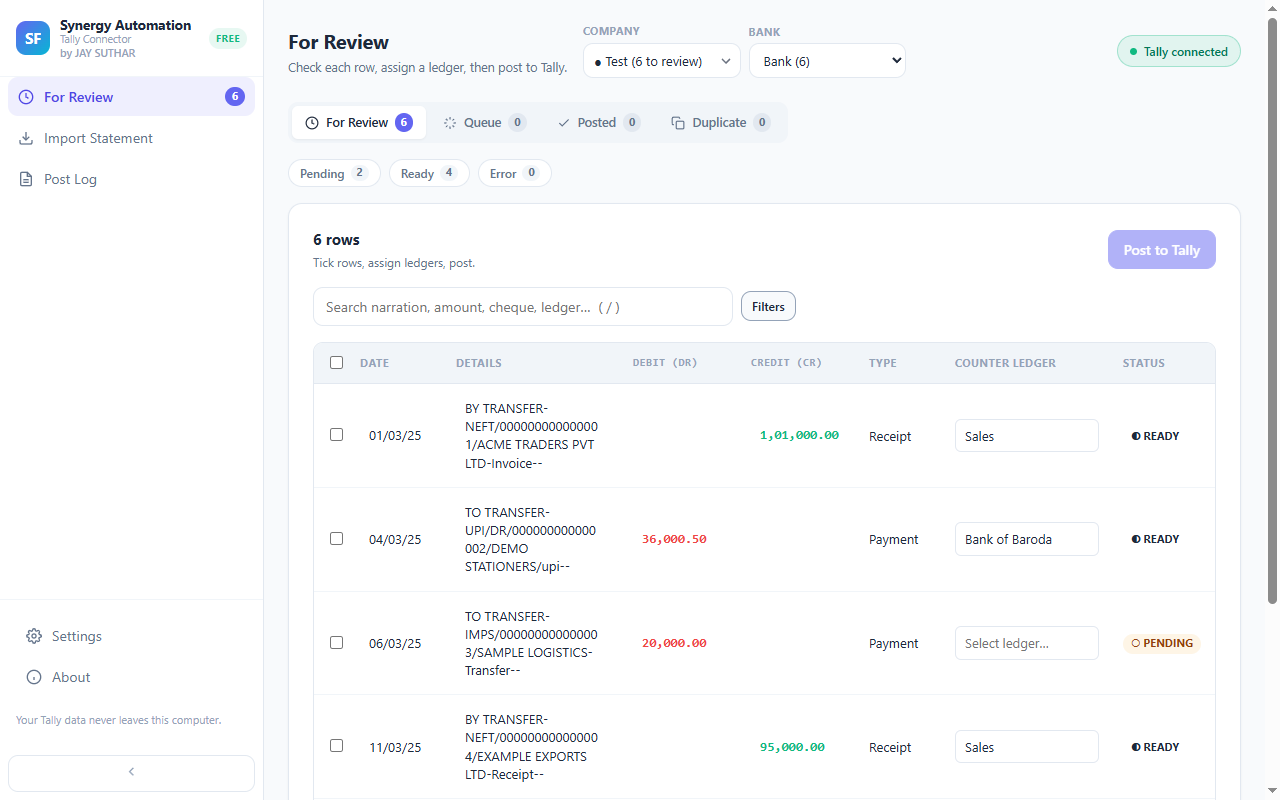
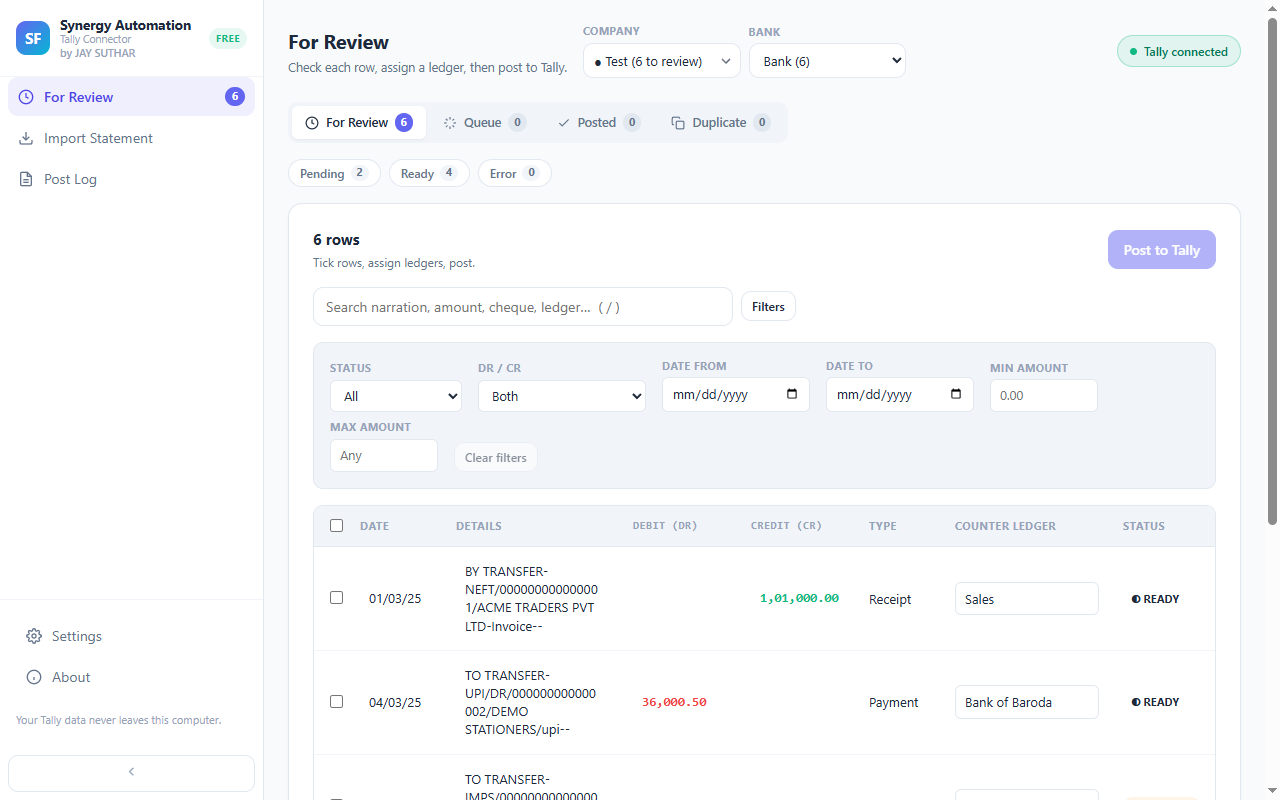
- Review — You see every entry with its date, narration and amount. Pick a ledger by typing a few letters, or set one ledger for many entries at once.
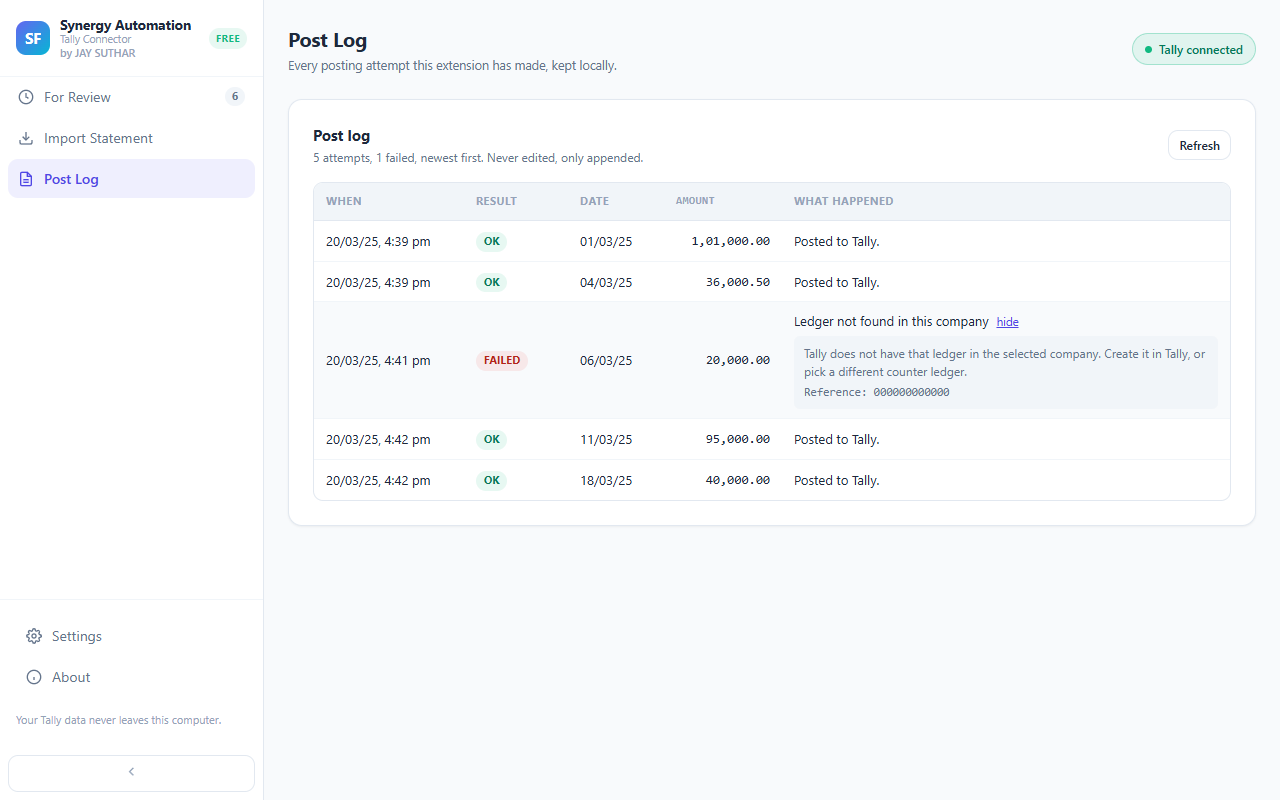
- Post — Tick the entries you’re happy with, confirm, and they’re in your Tally company. Everything you post is kept in a log on your own computer.
See the whole walkthrough, screen by screen · What “nothing leaves your computer” means exactly · The Tally import errors this avoids
What it does
See every feature · Set it up, step by step
See it
The whole thing, start to finish: installing the extension, importing a bank statement, assigning ledgers and posting twenty entries into TallyPrime.
Why it is free
We build accounting software, so we’ve seen what month end does to you: a whole evening retyping a bank statement that a computer could do in minutes. That bothered us enough to build this and give it away.
There is no trial, no upgrade screen, no card and no sign-up — and there is nothing we take back, not even your data. We made it for you. If it gives you an evening back, that was the whole return we wanted.
What you need
- Your bank statement as an Excel or CSV file — the download your net banking offers next to the PDF. A PDF on its own will not import
- Google Chrome on the computer where TallyPrime runs
- One setting switched on in TallyPrime — we show you exactly where
- Your Tally company loaded
Questions
Does my bank statement or accounting data leave my computer?
No. The statement is read on your own computer, and your ledgers, balances and entries move only between this extension and the TallyPrime running on that same computer. Nothing is sent to us and nothing is sent to anyone else. Chrome shows you what an extension is allowed to reach before you install it — look at that list for this one and you will see your own Tally, and nothing else.
Is it really free?
Yes. There is no subscription, no charge per entry, and no trial that expires into a paywall. Each copy registers itself once so that we can support it, and that carries nothing at all from your books.
Is this really the first tool of its kind?
Other tools connect a browser to Tally, and some of them are good. What we have not found anywhere else is one that does the whole job on your own computer — where you are not asked to create an account, your statement is never sent to a website, and nothing is installed on Windows beyond Chrome itself. That is what we mean by first, and it is the only thing we claim. If you know of another one, write to us and we will say so here.
Why is this a Chrome extension and not just a website?
Because a website cannot reach the Tally on your computer. Chrome keeps every website away from the programs on your PC, so a website-only tool has two choices: ask you to upload your statement to it, or ask you to install a separate program on Windows to carry the entries across. An extension is different. You choose to add it, Chrome shows you exactly what it may reach, and it can be allowed to talk to the Tally on your own computer. That is how this one posts your statement into Tally without anything leaving your computer, and without installing anything on Windows.
Do I have to make an XML file, or use Tally’s import screen?
No. There is no file to export, save or import — the entries are written straight into your open company, and you never open Tally’s Import Data screen at all. You go from the statement your bank gave you to entries in Tally, with nothing in between.
Which banks does it work with?
Any bank that gives you an Excel or CSV statement. You don’t pick your bank from a list, so even an unusual layout or a new bank still imports.
My bank only gives a PDF statement. Can I use that?
Not directly — the extension reads Excel and CSV, not PDF. Most net banking portals offer an Excel or CSV download next to the PDF one, so check there first; that file is always the better one to use, because a PDF has to be converted and a conversion can quietly get a figure wrong. If Excel genuinely is not offered, convert the PDF to Excel first and check the converted rows against the PDF before you import them.
What stops the same entry being posted twice?
Every row is stamped with a short code of its own, and that code is saved with the entry inside Tally. Before posting, the extension reads what is already in your company and skips anything it recognises — so importing the same statement again, or moving to a new computer, cannot create duplicates.
How long does it take to get going?
If Tally’s connection setting is already on, under a minute — that is from adding the extension to your first entries appearing in your company. If that setting has never been turned on, allow a few minutes the first time: it is one setting, you only ever do it once, and the extension guides you through it and tells you when it can see Tally. How long a full statement then takes is up to you, because you assign the ledgers.
What do I need to set up in TallyPrime?
One setting. In TallyPrime: F1 → Settings → Connectivity → Client/Server configuration → set “TallyPrime acts as” to Both, port 9000. Then load your company. The extension guides you through it and tells you when it can see Tally.
What happens if Tally is closed when I try to post?
Nothing is lost. Rows are queued, and the extension posts them automatically as soon as it sees TallyPrime again — it re-checks every few seconds while Tally is away.
Can I review entries before they reach Tally?
That is the point of it. Every row is listed with its date, narration, amount and voucher type, you assign the counter ledger yourself, and nothing is written to Tally until you tick the rows and confirm.
How is this different from the Synergy Automation web app?
The web app runs in the cloud, so you can reach your work from any device and more than one person can share it. This extension runs only on the computer in front of you, and your data never leaves it. Both are free. Choose the extension if you would rather your books stayed exactly where they are.
Where this fits
The Tally Connector Extension is part of Synergy Automation, built by Synergy Futurecorp OPC Pvt Ltd for you — whether you run a CA practice, keep the books, or own the business. It is a different product from Synergy Connector, our desktop app, and from the Synergy Automation web app — this one runs entirely in your browser and talks only to the Tally on your own computer. Our Knowledge Hub has practical guides on bank reconciliation and getting Excel into Tally, including bank-by-bank walkthroughs for HDFC, SBI and ICICI.
Contact
Questions, or a bank statement that will not import? Email [email protected] and attach the file.