
Key points
- When an e-way bill is generated along with an e-invoice in TallyPrime 7.2, the consignor and consignee details on the e-way bill are taken from the IRN data, not from the e-Way Bill Additional Details screen.
- In TallyPrime 7.2, buyer and ship-to details must be corrected in the Party Details screen of the sales voucher; edits made only on the e-Way Bill Additional Details screen do not reach the IRP.
- If the consignee (ship-to) GSTIN/UIN is left blank in TallyPrime, the e-way bill system reports that consignee as URP (unregistered person), and GSTN requires the ship-to GSTIN wherever bill-to and ship-to addresses differ from 1 August 2026.
- For an export e-invoice with an e-way bill, the ship-to State and PIN code in TallyPrime must be the Indian port of export, because Other Territory with a 999999 PIN cannot be used to calculate the e-way bill route.
- Mode of transport, vehicle number and vehicle type are mandatory in TallyPrime 7.2 to generate Part B of the e-way bill in the same request as the IRN.
Most failed one-shot generations in TallyPrime trace back to one screen: Party Details. The IRN goes through, the e-way bill rejects, and the voucher lands in Missing/Invalid Information with a PIN or GSTIN error. That happens because when both documents go together, the e-way bill reads its party data from the IRN payload. Fix Party Details first and the rest of the workflow is routine.
What Is Combined e-Invoice and e-Way Bill Generation?
TallyPrime 7.2 can send a sales voucher to the IRP and request an e-way bill in the same call. The IRP generates the IRN, then constructs the e-way bill from the IRN data plus the Part B transport details you supply. So supplier, buyer, ship-to, item values and HSN on the e-way bill are copied from the e-invoice. Anything wrong in Party Details is wrong on both documents, and the e-way bill layer often rejects it first.
How to Generate e-Invoice and e-Way Bill Together in TallyPrime 7.2 — Step by Step
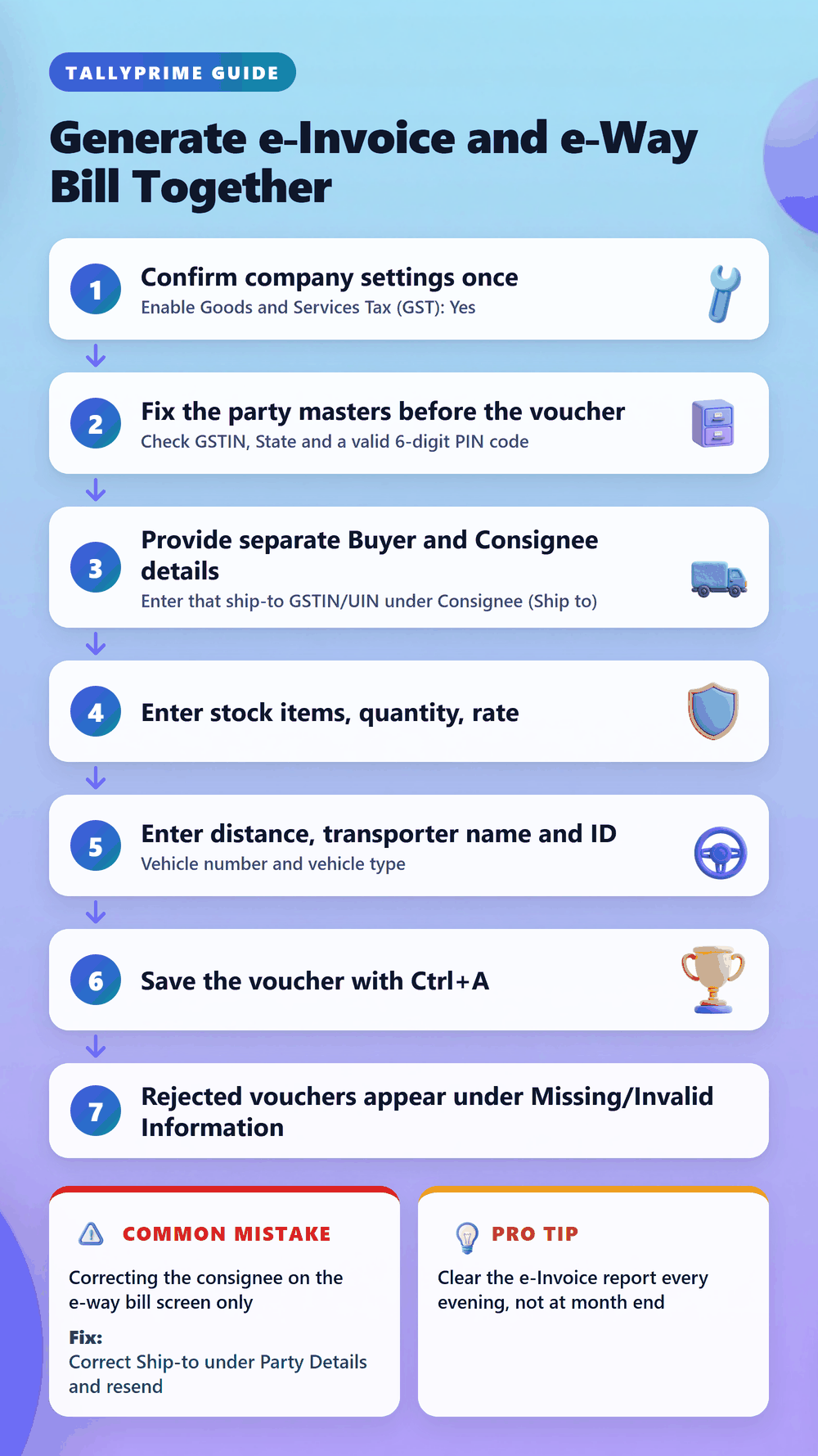
- Confirm company settings once. Go to Gateway of Tally > F11 (Features) > Enable Goods and Services Tax (GST): Yes, then open the GST registration details and set e-Invoicing applicable: Yes and e-Way Bill applicable: Yes with the correct applicable-from dates. Tally tip: set the e-way bill threshold to match your state rule; ₹50,000 is the inter-state figure, but some states use a higher intra-state limit.
- Fix the party masters before the voucher. Open the buyer ledger via Gateway of Tally > Alter > Ledger and check GSTIN, State and a valid 6-digit PIN code. A missing PIN in the ledger master is the single most common reason a voucher falls into Missing/Invalid Information.
- Create the invoice from Gateway of Tally > Vouchers > F8 (Sales). In the Party Details screen press F12 and set Provide separate Buyer and Consignee details: Yes, then save with Ctrl+A. If goods are delivered to a different GSTIN, enter that ship-to GSTIN/UIN under Consignee (Ship to); a blank field is reported as URP.
- For export invoices, keep the foreign buyer under Buyer (Bill to), but set Consignee (Ship to) State and PIN to the Indian port of export, for example Gujarat with the Mundra port PIN. Tally tip: leaving Other Territory with 999999 under ship-to is what pushes export vouchers into Missing/Invalid Information.
- Enter stock items, quantity, rate and GST ledgers, then set Provide GST/e-Way Bill details: Yes. In the e-Way Bill Additional Details screen enter distance, transporter name and ID, mode (Road, Rail, Air or Ship), vehicle number and vehicle type (Regular or Over Dimensional Cargo). Tally tip: press the portal-distance option on this screen to fetch the PIN-to-PIN distance from the NIC portal instead of guessing it.
- Save the voucher with Ctrl+A. When TallyPrime asks whether to generate the e-invoice and e-way bill, press Y. Do not edit consignor or consignee fields on the e-way bill screen; change them in Party Details, because the IRN data overrides that screen.
- If you skipped generation at save time or have a batch, use Alt+G (Go To) > e-Invoice, select the pending vouchers and send them together. Rejected vouchers appear under Missing/Invalid Information; drill down, correct the field, and resend.
Common IRN and e-Way Bill Mismatches
- Correcting the consignee on the e-way bill screen only → the IRP builds the e-way bill from the IRN, so your correction is ignored and the old address goes through → correct Ship-to under Party Details and resend.
- Ship-to GSTIN left blank for a registered consignee → the consignee is reported as URP and the recipient cannot see the e-way bill against their GSTIN → enter the ship-to GSTIN/UIN in the Consignee section before generating.
- Export invoice with Other Territory and 999999 under ship-to → the e-way bill fails because there is no Indian destination to route to → set ship-to State and PIN to the port of export.
- IRN generated without Part B, then the vehicle number added later in the voucher → TallyPrime does not regenerate the IRN, and the e-way bill still lacks Part B → generate or update Part B for the existing IRN from the e-Way Bill report instead of cancelling the IRN.
- Cancelling the IRN but not the linked e-way bill → the IRP does not allow cancelling an IRN while an active e-way bill exists against it → cancel the e-way bill first, then the IRN, both within 24 hours of generation.
Daily e-Invoice Management Rules
Clear the e-Invoice report every evening, not at month end. Taxpayers with AATO of ₹10 crore or more cannot report an invoice to the IRP more than 30 days after its date, and a voucher stuck in Missing/Invalid Information can quietly cross that line. Second, collect vehicle numbers from your transporter before you raise the invoice; it lets you generate IRN and Part B in one request instead of two. Third, keep e-way bill closure in mind as a separate task, since the validity clock runs at roughly one day per 200 km for regular vehicles. Separately, if bank entries are your other monthly backlog, Synergy Automation is a free tool that posts Excel, CSV or net-banking PDF bank statements directly to Tally Prime and Tally ERP 9 without XML files; it does not handle e-invoices or e-way bills.
Use this infographic on your site
Free to share. Copy this code and keep the credit link.
Q: How to generate e-invoice and e-way bill together in TallyPrime 7.2?
Create the sales voucher with F8, complete Party Details including ship-to, set Provide GST/e-Way Bill details: Yes and fill mode, vehicle number and vehicle type. Save with Ctrl+A and press Y when TallyPrime asks to generate. Both the IRN and the e-way bill are created in one request.
Q: Why does the e-way bill show the wrong consignee even after I changed it in TallyPrime?
When the e-way bill is generated with the e-invoice, the party details come from the IRN, not the e-way bill screen. Change the consignee in the Party Details screen of the voucher. If the IRN is already generated, cancel the e-way bill and IRN within 24 hours and regenerate.
Q: Is ship-to GSTIN mandatory on the e-way bill?
Yes, where bill-to and ship-to addresses differ and the consignee is registered, GSTN requires the ship-to GSTIN/UIN from 1 August 2026. In TallyPrime, enter it under Consignee (Ship to) in Party Details. If left blank, the consignee is reported as URP.
Q: How is e-invoice and e-way bill generation different in Tally ERP 9 vs TallyPrime 7.2?
Tally ERP 9 relies on exporting JSON files and uploading them on the portals manually. TallyPrime connects to the IRP and e-way bill system directly, with online e-way bill generation available from TallyPrime 3.0 onwards. TallyPrime 7.2 can generate the IRN and e-way bill in a single request from the voucher.
Q: How long does it take to fix a voucher stuck in Missing/Invalid Information?
Usually a few minutes per voucher, because the report names the missing field. Open Alt+G > e-Invoice, drill into Missing/Invalid Information, correct the PIN, State or GSTIN, and resend. Fixing the party ledger master stops the same error on future invoices.