Key points
- In TallyPrime 7.2, the GSTR-1 error "Applicable Tax Ledger is not selected" means the tax ledger on a sales voucher does not match the supply type implied by that voucher's Place of Supply: CGST and SGST for the same state, IGST for a different state.
- TallyPrime decides whether a sale is intra-state or inter-state by comparing the company's GST registration state with the Place of Supply saved in the voucher's Party Details, not with the state currently shown in the party ledger.
- Correcting the state in a party ledger master does not automatically rewrite the Party Details stored in vouchers already saved, so each flagged voucher must be opened from Gateway of Tally > Display More Reports > GST Reports > GSTR-1 > Uncertain Transactions and corrected.
- Supplies to an SEZ unit or SEZ developer are treated as inter-state and take IGST even when the SEZ is in the supplier's own state, under Section 7(5)(b) of the IGST Act, 2017.
- If a tax ledger master has the wrong Tax Type (for example a ledger named "Output IGST" set as Central Tax), fixing that one master clears every voucher that uses it.
You open GSTR-1 for October, and the B2B total is short by one invoice. Under Uncertain Transactions there is a single line: "Applicable Tax Ledger is not selected". The invoice clearly has tax on it, so the message feels wrong. It is not wrong. Tax was charged, but under the head the voucher's own Place of Supply does not allow.
What is the GSTR-1 Tax Ledger Mismatch Error?
Every sales voucher carries two facts that must agree. One is the Place of Supply saved in its Party Details. The other is the tax ledger you selected. If Place of Supply is your own state, TallyPrime expects CGST plus SGST. If it is another state, or an SEZ, it expects IGST. When the two disagree, TallyPrime keeps the voucher out of B2B, B2CL and B2CS tables and parks it under Uncertain Transactions.
How to Fix "Applicable Tax Ledger is Not Selected" in TallyPrime 7.2 — Step by Step
- Open the report. Press Alt+G (Go To), type GSTR-1 and select it, or go to Gateway of Tally > Display More Reports > Statutory Reports > GST Reports > GSTR-1. Press F2 and set the exact return period, for example 1-Oct-2026 to 31-Oct-2026. Tally tip: a wider period mixes in errors from months you have already filed, and you will end up editing vouchers you should not touch.
- Drill into the error. Under Uncertain Transactions (Corrections Needed), press Enter on "Applicable Tax Ledger is not selected". You get a list with party name, voucher number, taxable value and separate IGST, CGST and SGST columns. Tally tip: read those columns before opening anything. An IGST figure against a customer you know is local usually tells you the cause in one glance.
- Confirm your own registration state. Press Alt+K (Company) > GST Registration and check the state on the registration in use. Since TallyPrime 3.0 a company can hold more than one GSTIN. If the voucher was raised under your Maharashtra registration but the customer is in Gujarat, IGST is correct and the problem is elsewhere.
- Open the voucher and read its Party Details. Press Enter on the voucher, then check State, Registration Type, GSTIN and Place of Supply (use Ctrl+I: More Details > Party Details if the screen does not open by itself). The first two digits of a GSTIN are the state code. 27 is Maharashtra, 24 is Gujarat, 29 is Karnataka, 33 is Tamil Nadu, 07 is Delhi. If the GSTIN starts with 27 and the state says Gujarat, the state field is the error.
- Correct whichever side is wrong. If Place of Supply is wrong, fix it in Party Details. If the tax ledger is wrong, move to that line, press Ctrl+D to remove it, and select the correct ledger. Tally tip: when you replace IGST with CGST and SGST, remove the IGST line completely instead of leaving it at zero, so the voucher is not left holding a tax head that does not apply.
- Check the tax ledger master itself. In the voucher, place the cursor on the tax ledger and press Ctrl+Enter. It should sit under Duties & Taxes with Type of Duty/Tax set to GST and Tax Type set to Central Tax, State Tax or Integrated Tax to match its name. A ledger called "Output IGST" with Tax Type set to Central Tax will flag every inter-state sale you have ever posted with it. One correction here clears all of them.
- Save with Ctrl+A and verify. Return to GSTR-1 and confirm the count under Uncertain Transactions has dropped. Then compare the total taxable value in the GSTR-1 summary with your Sales Register for the same month. Tally tip: if the count fell but the totals still differ, a voucher has moved into the wrong table, such as B2CS instead of B2B because the GSTIN was blank.
Mistakes That Cost Indian CAs Hours
- Fixing only the party ledger → the vouchers keep the old state saved in their Party Details, so the error count does not move and you start doubting the software → open each flagged voucher and correct the Place of Supply there as well.
- Charging CGST and SGST to a local SEZ customer → the voucher lands in Uncertain Transactions and, if filed, the tax sits under the wrong head → set the party's Registration Type to SEZ, charge IGST, and record whether the supply is under LUT or with payment of tax.
- Using the billing address when goods go elsewhere → for a B2C sale where goods move, Place of Supply is where the movement ends under Section 10(1)(a) of the IGST Act; for bill-to-ship-to with a registered buyer, it is the bill-to party's state under Section 10(1)(b) → set Place of Supply on these rules, not by habit.
- One combined "Output GST" ledger with no Tax Type → TallyPrime cannot tell which head the amount belongs to and flags the voucher → create separate Output CGST, Output SGST and Output IGST ledgers, each with the correct Tax Type.
- Editing the voucher after GSTR-1 is already filed → your books change but the filed return does not, and the next reconciliation breaks → leave the original as filed, report the correction through Table 9A of the next GSTR-1, and handle the wrong-head tax as explained in the FAQ below.
Pro Tips for 2026
Run GSTR-1 once a week, not once a month. Five flagged vouchers on a Friday take a few minutes; fifty on the 10th become an evening, and the monthly GSTR-1 for October 2026 is due on 11 November 2026. Second, fix the state at the moment you create the party ledger, by typing the GSTIN first and checking that its two-digit code matches the State field before you save. Most of these errors begin there, weeks before GSTR-1 shows them. Third, when the same party keeps appearing in the list, stop fixing vouchers and look at the ledger master and the sales voucher type. A repeating pattern almost always points to one wrong setting, not to careless entry.
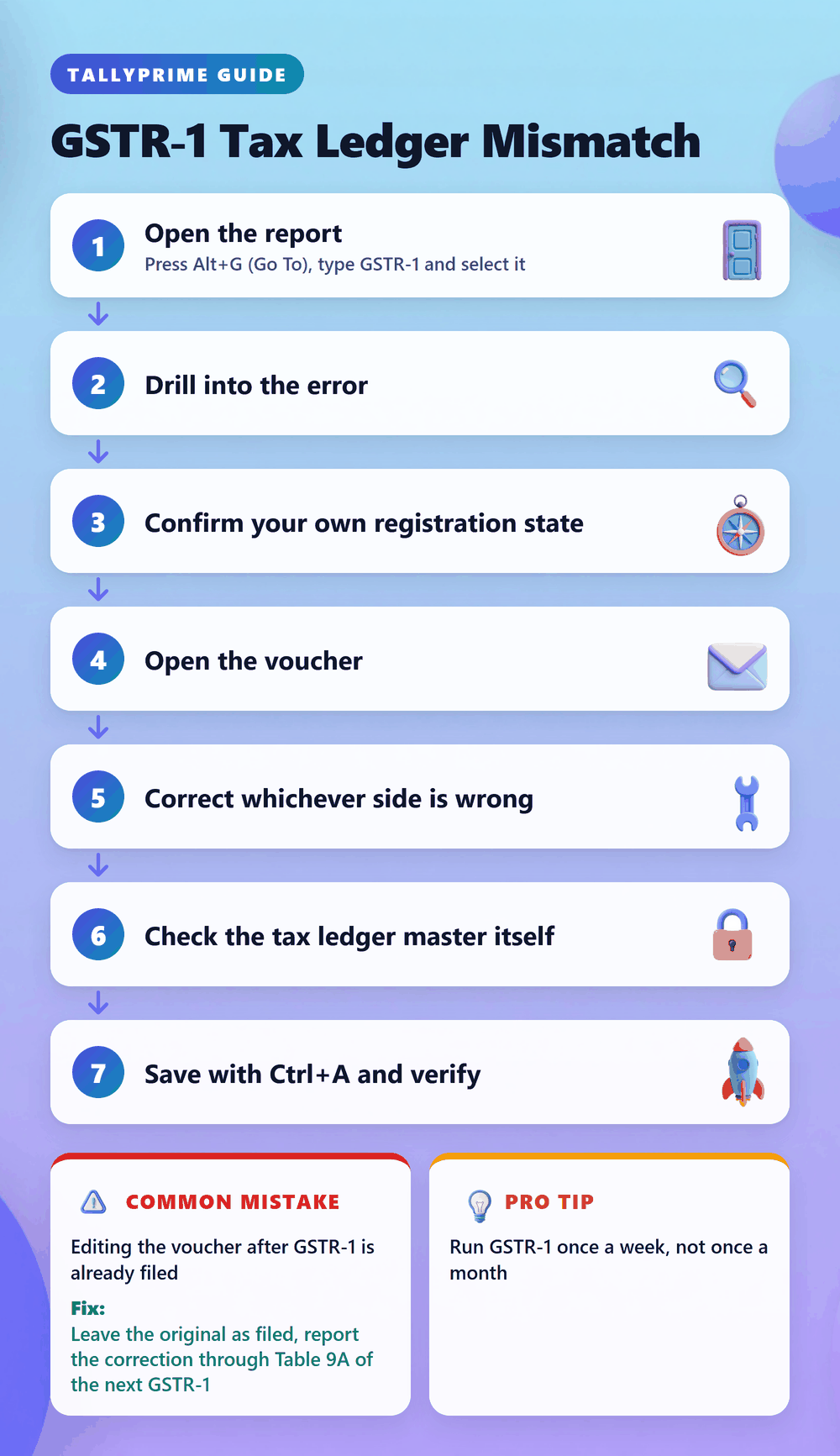
Use this infographic on your site
Free to share. Copy this code and keep the credit link.
Q: How to fix GSTR-1 tax ledger mismatch error in TallyPrime 7.2?
Open GSTR-1 with Alt+G, press Enter on "Applicable Tax Ledger is not selected" under Uncertain Transactions, and open each voucher. Check the Place of Supply in Party Details against the tax ledger: same state needs CGST plus SGST, another state or an SEZ needs IGST. Correct whichever is wrong, save with Ctrl+A, and confirm the count drops.
Q: Why does Tally say "Applicable Tax Ledger is not selected" when tax is already calculated?
Because the tax is under the wrong head. TallyPrime compares your registration state with the Place of Supply saved in the voucher. If you charged IGST on a same-state sale, or CGST and SGST on an inter-state sale, it treats the selected ledger as not applicable and keeps the voucher out of GSTR-1.
Q: I already filed GSTR-1 and paid IGST instead of CGST and SGST. What should I do?
Do not edit the original voucher to match. Pay the tax under the correct head, report the correction through Table 9A of a later GSTR-1, and claim a refund of the wrongly paid tax under Section 77 of the CGST Act and Section 19 of the IGST Act. No interest is payable on the correct-head tax, and the refund must be claimed within two years of paying the correct tax.
Q: Is this error different in Tally ERP 9 compared to TallyPrime 7.2?
The cause is the same. In Tally ERP 9 the path is Gateway of Tally > Display > Statutory Reports > GST > GSTR-1, and flagged vouchers appear under "Incomplete/Mismatch in information (to be resolved)". TallyPrime 7.2 calls the section Uncertain Transactions (Corrections Needed) and adds multiple GST registrations, so you must also check which registration the voucher was raised under.
Q: How long does it take to clear GSTR-1 tax ledger errors in Tally?
It depends on the cause. If one tax ledger master has the wrong Tax Type, a single alteration can clear every flagged voucher at once. If each voucher has its own wrong Place of Supply, you must open and correct them one by one, which is why checking the list weekly beats checking it the day before the due date.
A Separate Free Tool, for Bank Statements Only
Nothing in this GSTR-1 fix involves your bank statement, but month-end usually does. Synergy Automation is FREE and does one job: you upload an Excel or CSV bank statement, review every row in a table, and it posts directly to Tally without XML files. It works with both TallyPrime and Tally ERP 9, and your data is stored securely in our system.