Key points
- The GSTR-2B download often gives one row per invoice without a tax rate column, so a mixed-rate invoice cannot be split into rate-wise tax ledgers from GSTR-2B alone.
- The GSTR-2A Excel download from the GST portal carries a Rate (%) column with one row per rate, which makes it the better source for splitting a mixed-rate invoice across tax ledgers.
- The supplier invoice number from the GSTR-2B file must go into the Supplier Invoice No. field of the TallyPrime purchase voucher, not the voucher number, or the GSTR-2B report under Gateway of Tally > Display More Reports > GST Reports will not match it.
- TDS on a purchase or expense entry is calculated on the taxable value excluding GST when GST is shown separately on the invoice, so the TDS row in an import file must use the taxable value column, not the invoice value column.
- TallyPrime 7.2 imports purchase vouchers from Excel through Gateway of Tally > Import (Alt+O) > Transactions, while Tally ERP 9 has no native Excel voucher import and needs an XML route.
You imported last month's GSTR-2B into TallyPrime, opened one vendor invoice, and found a single Input IGST 18% line on a bill that actually carried 5% and 18% items. The total tax is right. The rate is wrong. Your GSTR-3B still ties, but the rate-wise summary, the HSN summary and any audit sampling will not. Mixed-rate invoices and TDS-liable vendors are where a 2B import quietly breaks, and the fix is mostly in how you prepare the file.
What is a multi-rate GSTR-2B import with TDS?
It means turning each inward invoice your suppliers reported into a full purchase voucher in Tally. The party is credited, each rate gets its own taxable and tax lines, and TDS is credited where the vendor attracts it. GSTR-2B tells you which invoices are eligible for ITC. GSTR-2A tells you the rate-wise detail. You need both. Treat 2B as the guest list and 2A as the seating plan: one says who is in, the other says where they sit.
How to Import GSTR-2B Purchases with Multi-Rate Tax and TDS in TallyPrime 7.2 — Step by Step
- Download both files for the same month from the GST portal: Returns Dashboard > select financial year and period > GSTR-2B > Download Excel, then GSTR-2A > Download > Generate Excel file. The 2A Excel can take up to 20 minutes to become available. Tally tip: GSTR-2B for monthly filers is generated on the 14th of the following month, so download it after the 14th and before you file GSTR-3B on the 20th.
- Open the B2B sheet of the GSTR-2A file and keep only GSTIN, supplier name, invoice number, invoice date, place of supply, reverse charge flag, Rate (%), taxable value, IGST, CGST, SGST and cess. Each rate on an invoice is its own row, so an invoice with 5% and 18% items appears twice. Delete the subtotal rows the portal sometimes inserts per invoice. Filter the invoice number column for "Total" and remove those rows before anything else, or every invoice imports with double value.
- Use the GSTR-2B B2B sheet only to decide eligibility. Bring the ITC Availability column across to the 2A rows with a lookup on GSTIN plus invoice number, then filter out rows marked No or flagged as reverse charge. If a 2B file has no rate column, derive it as IGST ÷ taxable value × 100, or (CGST + SGST) ÷ taxable value × 100 for intra-state rows. A derived rate of 11.5% means that 2B row is a blend of two rates. Pull that invoice from the 2A sheet instead.
- Set up your ledgers before you import. Go to Gateway of Tally > Create > Ledger and make rate-wise purchase ledgers (Purchase GST 5%, Purchase GST 18%) under Purchase Accounts, plus Input IGST, Input CGST and Input SGST under Duties & Taxes with Type of Duty/Tax set to GST. Tally tip: from 22 September 2025 most goods moved to the 5% and 18% slabs with 40% for specified goods, but older invoices and some items still carry 12% or 28%. Create a purchase ledger for every rate that actually appears in your 2A file, not only the current slabs.
- Configure TDS for vendors who need it. Press F11 (Company Features) and set Enable Tax Deducted at Source (TDS) to Yes. Create the TDS ledger under Duties & Taxes with Type of Duty/Tax as TDS and the correct Nature of Payment, then alter each vendor ledger: Is TDS Deductable = Yes and set the Deductee Type. For payments made on or after 1 April 2026 the Income-tax Act, 2025 applies and TDS sits in a consolidated section. Confirm your Nature of Payment masters show the current provision before you post FY 2026-27 bills.
- Build the import sheet with one row per ledger line, repeating the supplier invoice number and date on every row of the same voucher. A two-rate invoice with TDS becomes six rows: two purchase ledgers debited, IGST (or CGST and SGST) debited, the TDS ledger credited, and the party credited with invoice value minus TDS. Tally tip: compute the TDS row from the taxable value column only. CBDT has clarified that TDS excludes GST when GST is shown separately on the invoice.
- Import through Gateway of Tally > Import (Alt+O) > Transactions, choose Excel as the file format, and create a mapping template. Map the supplier invoice number to Supplier Invoice No. and the invoice date to the supplier invoice date, not to Voucher No. Then open Gateway of Tally > Display More Reports > GST Reports > GSTR-2B for the same period. Anything sitting under Available only on Portal after import usually means a mismatched invoice number format, such as a missing slash or a leading zero Excel stripped out.
Mistakes That Cost Indian CAs Hours
- Using the 2B row total as one tax line: the rate-wise summary and HSN reporting in your books show the wrong rate even though total ITC is correct. Fix: take rate-wise rows from GSTR-2A and use 2B only for the eligibility flag.
- Deducting TDS on invoice value including GST: the vendor short-receives, the TDS return shows inflated amounts, and the vendor raises it the moment Form 26AS updates. Fix: point the TDS formula at the taxable value column, and deposit the deduction by the 7th of the next month (30 April for March deductions).
- Applying purchase-of-goods TDS from the first rupee: the provision applies only above ₹50 lakh of purchases from one seller in a year, and only for buyers whose previous-year turnover crossed ₹10 crore. A blanket TDS column deducts on every bill. Fix: keep a running cumulative total per vendor GSTIN in the sheet, and fill the TDS column only on the portion above the threshold.
- Ignoring the multi-GSTIN supplier: if you keep one ledger for a vendor with branches in Karnataka and Odisha (F11 > Enable multiple addresses), the import picks the default address. Place of supply goes wrong, and IGST lands where CGST and SGST belong. Fix: map the supplier GSTIN column to the party GSTIN field in the template so each row picks the matching address, or keep separate ledgers per GSTIN.
- Mixing credit notes into the purchase import: B2B-CDNR rows have positive values in the download, so they post as fresh purchases and double your ITC. Fix: import the CDNR sheet separately as Debit Note vouchers, and keep IMPG, ISD and reverse charge rows out of the B2B import entirely.
Pro Tips for 2026
Save the Excel mapping template the first time and never rebuild it. The portal changes column order occasionally, so check the header row each month before you reuse it. Second, add a "Source period" column carrying the GSTR-1 filing period from 2B. When a supplier files late, the invoice appears in a later 2B, and that column tells you instantly whether you have already booked it from an earlier month. Third, do not import every 2B row blindly. Expense invoices such as freight, rent and professional fees need the right expense ledger and TDS nature, so filter those suppliers into a separate sheet and handle them before the goods purchases.
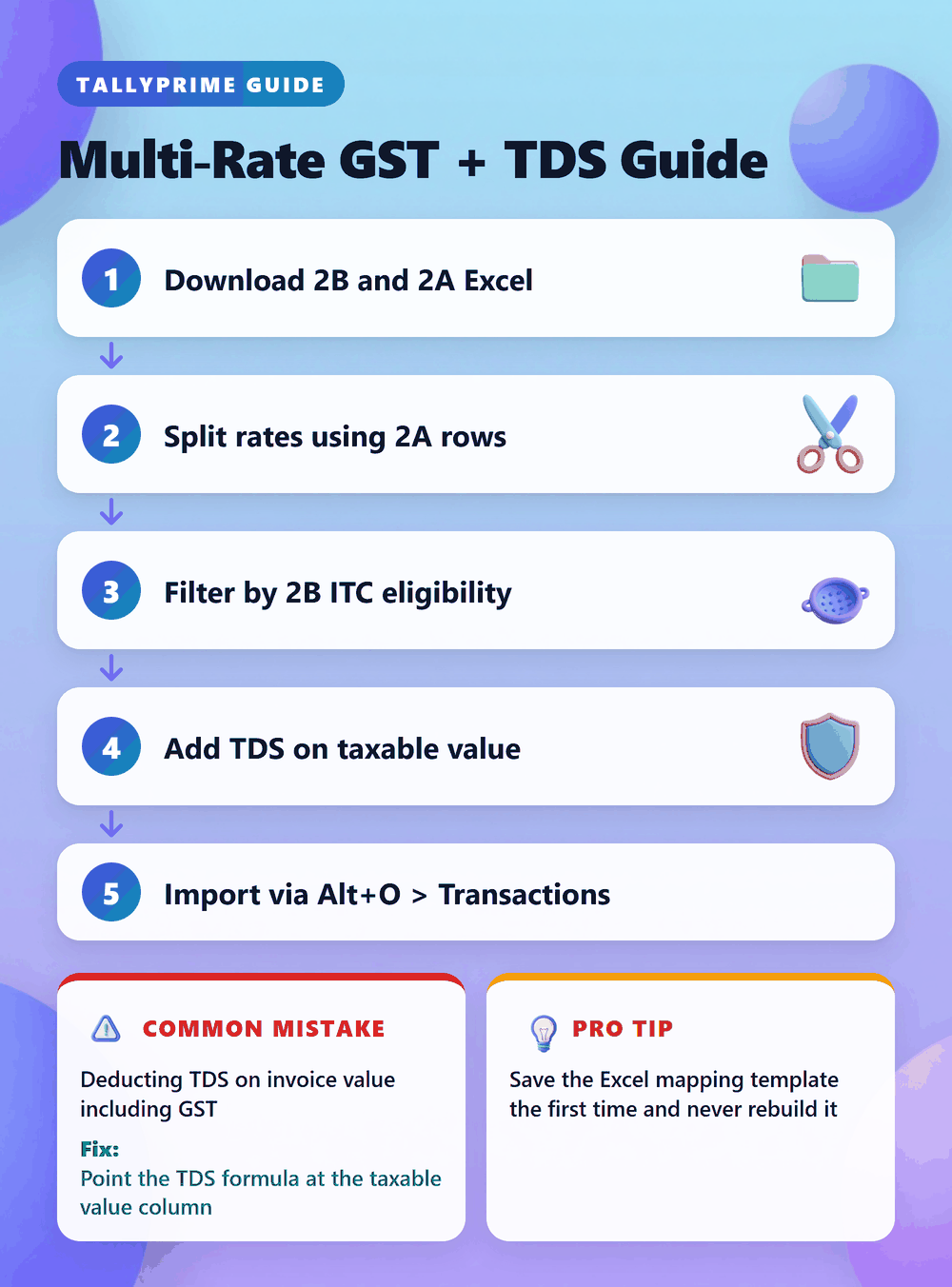
Use this infographic on your site
Free to share. Copy this code and keep the credit link.
Q: How to import GSTR-2B purchase entries in TallyPrime 7.2?
Download the GSTR-2B and GSTR-2A Excel files from the GST portal and build a sheet with one row per ledger line. Use 2A for rate-wise rows and 2B for ITC eligibility. Import it through Gateway of Tally > Import (Alt+O) > Transactions with an Excel mapping template, then check Display More Reports > GST Reports > GSTR-2B.
Q: Why does my GSTR-2B import show only one GST rate for an invoice with two rates?
The GSTR-2B download often gives one row per invoice without a rate column, so tax for both rates is added together. Take that invoice from the GSTR-2A B2B sheet instead, where each rate is its own row with a Rate (%) column.
Q: Should TDS be deducted on the GST amount when importing purchase bills into Tally?
No. When GST is shown separately on the invoice, TDS is calculated on the taxable value only. Build the TDS row in your import sheet from the taxable value column and credit the party with invoice value minus TDS.
Q: Can I import GSTR-2A or GSTR-2B into Tally ERP 9?
Tally ERP 9 has no native Excel voucher import and no GSTR-2B report. You would need an XML-based route to post vouchers. TallyPrime 7.2 supports Excel import of transactions and has GSTR-2A and GSTR-2B reports built in, which is a strong reason to upgrade.
Q: How long does a GSTR-2B import into Tally take each month?
The first month takes the longest, because you are creating rate-wise ledgers, TDS masters and the Excel mapping template. After that, most of the work is cleaning the download, checking mixed-rate and TDS rows, and clearing whatever stays under Available only on Portal.