Key points
- TallyPrime 7.2 can accept vouchers over HTTP on port 9000, so entries can be posted without opening Alt+O Import or saving any file inside Tally.
- The HTTP listener is switched on at F1 (Help) > Settings > Connectivity > Client/Server Configuration by setting "TallyPrime acts as" to Both or Server, with port 9000.
- Opening http://localhost:9000 in a browser returns "TallyPrime Server is Running" when the listener is active and TallyPrime is open.
- In Tally voucher XML, a debit line carries a negative AMOUNT with ISDEEMEDPOSITIVE set to Yes, and a credit line carries a positive AMOUNT with ISDEEMEDPOSITIVE set to No.
- Tally ERP 9 accepts the same XML envelope on the same port, configured under Gateway of Tally > F12 Configure > Advanced Configuration.
You fill the sample Excel file, go to Alt+O > Import > Transactions, and Tally rejects it because one column header has a trailing space. Then you do it again next week. There is a second door into Tally that most CAs never open. TallyPrime listens on port 9000 and will create vouchers from an XML message sent to it, with no Import screen, no mapping template and no file dialog.
What is posting to Tally over port 9000?
When TallyPrime runs as a server, it opens a small HTTP listener on your own computer. Anything that sends a correctly formed XML message to that address can ask Tally to create, alter or read data. Tally checks the message against your open company, posts the voucher, and replies with a count of what it created and any errors. It is the same engine the Import screen uses underneath, minus the menus. Tally itself is the back office; port 9000 is the service window.
How to Post a Voucher over Port 9000 in TallyPrime 7.2 — Step by Step
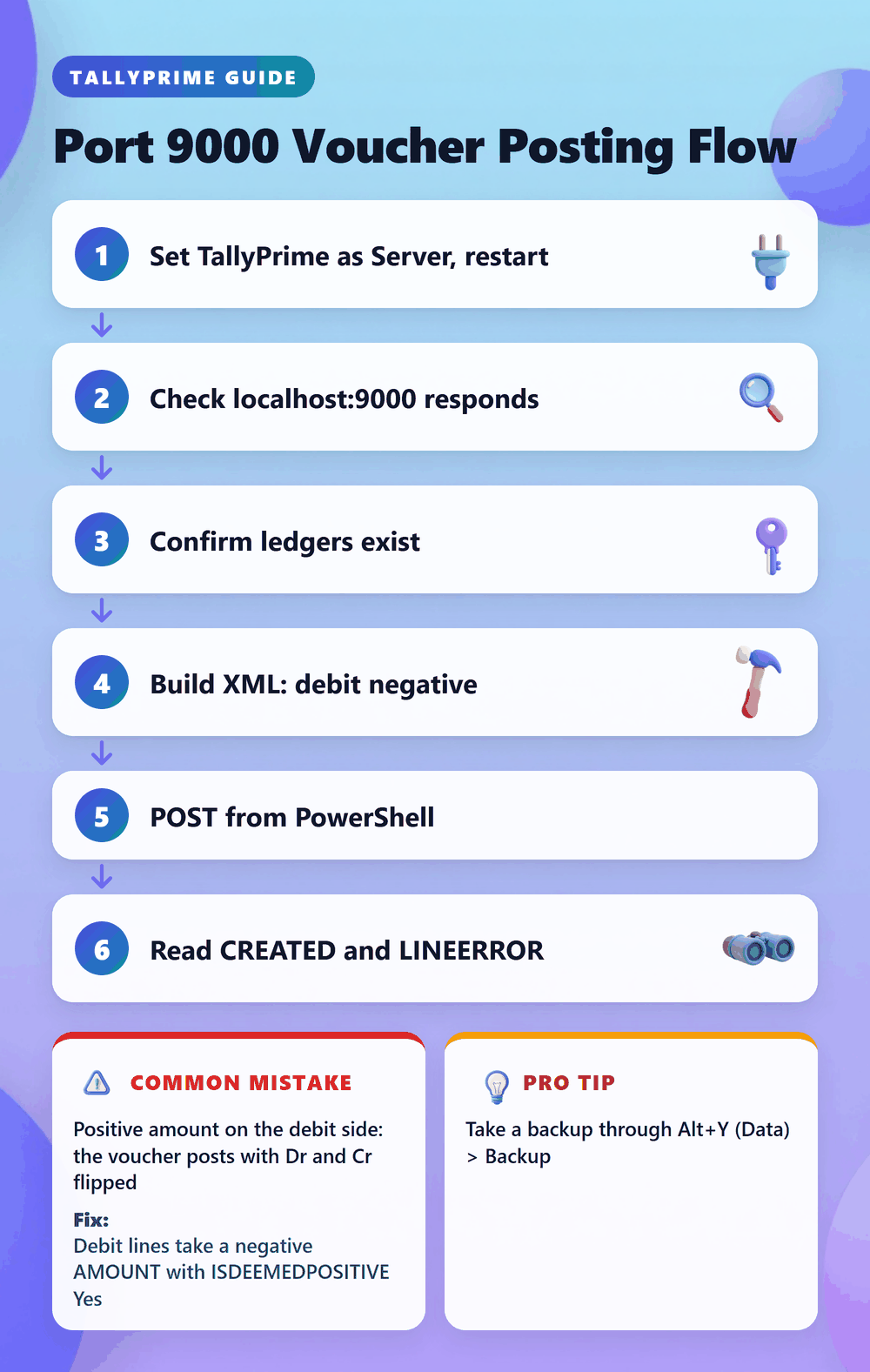
- Open TallyPrime 7.2, press F1 (Help) > Settings > Connectivity > Client/Server Configuration. Set "TallyPrime acts as" to Both, set Enable ODBC to Yes, and keep Port as 9000. Accept and restart TallyPrime. Tally tip: the setting only takes effect after a restart, which is the single most common reason the next step fails.
- Open your company, then type http://localhost:9000 in Chrome or Edge on the same computer. You should see "TallyPrime Server is Running". If the page does not load, another program (often an older Tally ERP 9 or a sync utility) may already hold port 9000. Change the port to 9001 in the same screen and use that number everywhere below.
- Confirm the masters exist before you send anything. Check Gateway of Tally > Chart of Accounts > Ledgers for every ledger you will name, for example "HDFC Bank A/c" and "Office Rent". Tally tip: XML import does not create a ledger that a voucher refers to; it rejects the line. Spelling, spacing and case should match the ledger name exactly.
- Write the voucher XML. The envelope is: ENVELOPE > HEADER with TALLYREQUEST "Import Data" > BODY > IMPORTDATA > REQUESTDESC with REPORTNAME "Vouchers" and SVCURRENTCOMPANY set to your exact company name > REQUESTDATA > TALLYMESSAGE > VOUCHER with VCHTYPE="Payment" and ACTION="Create". Inside VOUCHER give DATE as YYYYMMDD (20261031), VOUCHERTYPENAME as Payment, and two ALLLEDGERENTRIES.LIST blocks. SVCURRENTCOMPANY must be character-for-character identical to the name in the F3 company list, including "Pvt Ltd" versus "Private Limited".
- Set the signs correctly. For a Rs 25,000 rent paid from HDFC: the Office Rent line has ISDEEMEDPOSITIVE Yes and AMOUNT -25000.00; the HDFC Bank A/c line has ISDEEMEDPOSITIVE No and AMOUNT 25000.00. Tally tip: the lines must total zero. If they do not, Tally refuses the voucher rather than guessing.
- Send it from PowerShell on the same machine: Invoke-WebRequest -Uri http://localhost:9000 -Method Post -Body (Get-Content .\rent.xml -Raw). Or with curl: curl.exe --data-binary "@rent.xml" http://localhost:9000. PowerShell 5 may show the reply truncated; add | Select-Object -Expand Content to read it fully.
- Read the reply before you open Day Book. CREATED 1 and ERRORS 0 means the voucher is in. Any LINEERROR tag holds Tally's reason in plain English, such as a missing ledger. Then check Gateway of Tally > Display More Reports > Day Book for 31-Oct-2026. Tally tip: an EXCEPTIONS count above zero usually means a value Tally could not interpret, most often a date.
Mistakes That Cost Indian CAs Hours
- Positive amount on the debit side: the voucher posts with Dr and Cr flipped, so rent shows as income and the bank balance goes the wrong way → debit lines take a negative AMOUNT with ISDEEMEDPOSITIVE Yes. Test with one voucher and open it in Alter mode before sending fifty.
- Sending the same batch twice after a timeout: ACTION="Create" makes a fresh voucher every time, so you get duplicate payments that surface only at bank reconciliation → keep a sent-log of each batch, and when a reply goes missing, check Day Book before resending.
- Wrong company in focus or a misspelt company name: with several companies loaded, the reply can report an error even though Tally is running → put the exact name in SVCURRENTCOMPANY, or load only the target company while posting.
- Testing in Educational mode: an unlicensed TallyPrime accepts voucher dates only on the 1st, 2nd and 31st of a month, so a 15-Oct entry fails and looks like an XML bug → test with a date such as 20261031, or use the licensed copy.
- Hard-coding VOUCHERNUMBER on an automatic-numbering voucher type: numbers clash or go out of sequence → leave VOUCHERNUMBER out and let Tally number it. Only send it when the voucher type is set to Manual numbering.
Pro Tips for 2026
Before posting, take a backup through Alt+Y (Data) > Backup, because there is no single-click undo for a batch sent over port 9000. Keep each test XML to one voucher until the reply is clean; Tally reports errors per voucher, and a 200-voucher message with one bad ledger is tedious to untangle. If the server option sits on Both permanently, Windows Firewall may ask about network access; allow only Private networks unless another office machine genuinely needs to post. If what you are posting is a bank statement in Excel or CSV, Synergy Automation is free, posts directly to Tally without XML files, and works with both TallyPrime and Tally ERP 9, so you review each row and click Post instead of writing envelopes by hand.
Use this infographic on your site
Free to share. Copy this code and keep the credit link.
Q: How to post entries into Tally without the import screen in TallyPrime 7.2?
Turn on the server at F1 > Settings > Connectivity > Client/Server Configuration, set it to Both with port 9000, and restart TallyPrime. Then send a voucher XML with TALLYREQUEST "Import Data" to http://localhost:9000 using PowerShell or curl. Tally replies with CREATED and ERRORS counts.
Q: Why does localhost:9000 not open even though Tally is running?
Usually TallyPrime was not restarted after enabling the server, or another program is already using port 9000. Restart Tally first. If it still fails, change the port to 9001 in Client/Server Configuration and use that port in your requests.
Q: Tally says CREATED 0 and shows a LINEERROR. What do I check?
Read the LINEERROR text; it names the problem. The usual causes are a ledger name that does not match exactly, a company name in SVCURRENTCOMPANY that differs from the F3 list, or debit and credit lines that do not total zero.
Q: Does posting over port 9000 work in Tally ERP 9 as well as TallyPrime 7.2?
Yes. Tally ERP 9 accepts the same XML envelope on port 9000. Enable it at Gateway of Tally > F12 Configure > Advanced Configuration by setting Tally to act as Both. The voucher tags and sign rules are the same.
Q: How long does it take to set up posting without the Import screen?
The settings change is a few screens plus a restart. Most of the effort goes into getting the first voucher XML right: ledger names, date format and debit signs. Once one voucher posts cleanly, the same template works for the rest.