
Key points
- TallyPrime has a built-in Browser Access feature, available from Release 2.0 onwards and present in TallyPrime 7.2, that shows company reports in any phone or laptop browser without installing a separate app.
- TallyPrime Browser Access needs a licensed copy with an active Tally Software Services (TSS) subscription; it does not work in Educational Mode.
- In TallyPrime 7.2 the feature is switched on at F11 (Features) > Online Access > Enable Browser Access for Reports, and the company must have Control User Access to Company Data set to Yes.
- Every TallyPrime browser user must be created with an email ID as the username, under Alt+K (Company) > Users and Passwords, with browser access allowed for that user.
- TallyPrime Browser Access reads live data from the computer running TallyPrime, so that computer must stay on, connected to the internet, with the company open and connected.
A client's partner calls from an airport lounge. He wants the outstanding receivables before he meets a buyer, and your office computer is the only place the data lives. Most CAs reach for a sync app at this point. TallyPrime 7.2 already has a native way to put those reports on his phone, and the setup takes one company alteration, one user and one Connect.
What is Tally on Mobile through Browser Access?
Browser Access is TallyPrime's own feature for viewing reports outside the office. You switch it on, create a user with an email ID, and connect the company. That user then logs in from Chrome or Safari on any phone and sees the Balance Sheet, Profit & Loss, Day Book, ledgers and outstandings. There is no separate copy of the data. The phone simply shows what the office computer is holding right now.
How to Set Up Tally on Mobile in TallyPrime 7.2 — Step by Step
- Check the licence and release first. Press F1 (Help) > About and confirm the release is 7.2 and the licence shows as active, not Educational Mode. If TSS has lapsed, the Online Access options appear but the connection fails. Renew TSS before you spend time on anything else.
- Secure the company. Open it, press Alt+K (Company) > Alter, and set Control User Access to Company Data to Yes. Create the administrator username and password when prompted. Tally tip: store the admin password with your engagement records. A forgotten admin password locks you out of altering users later.
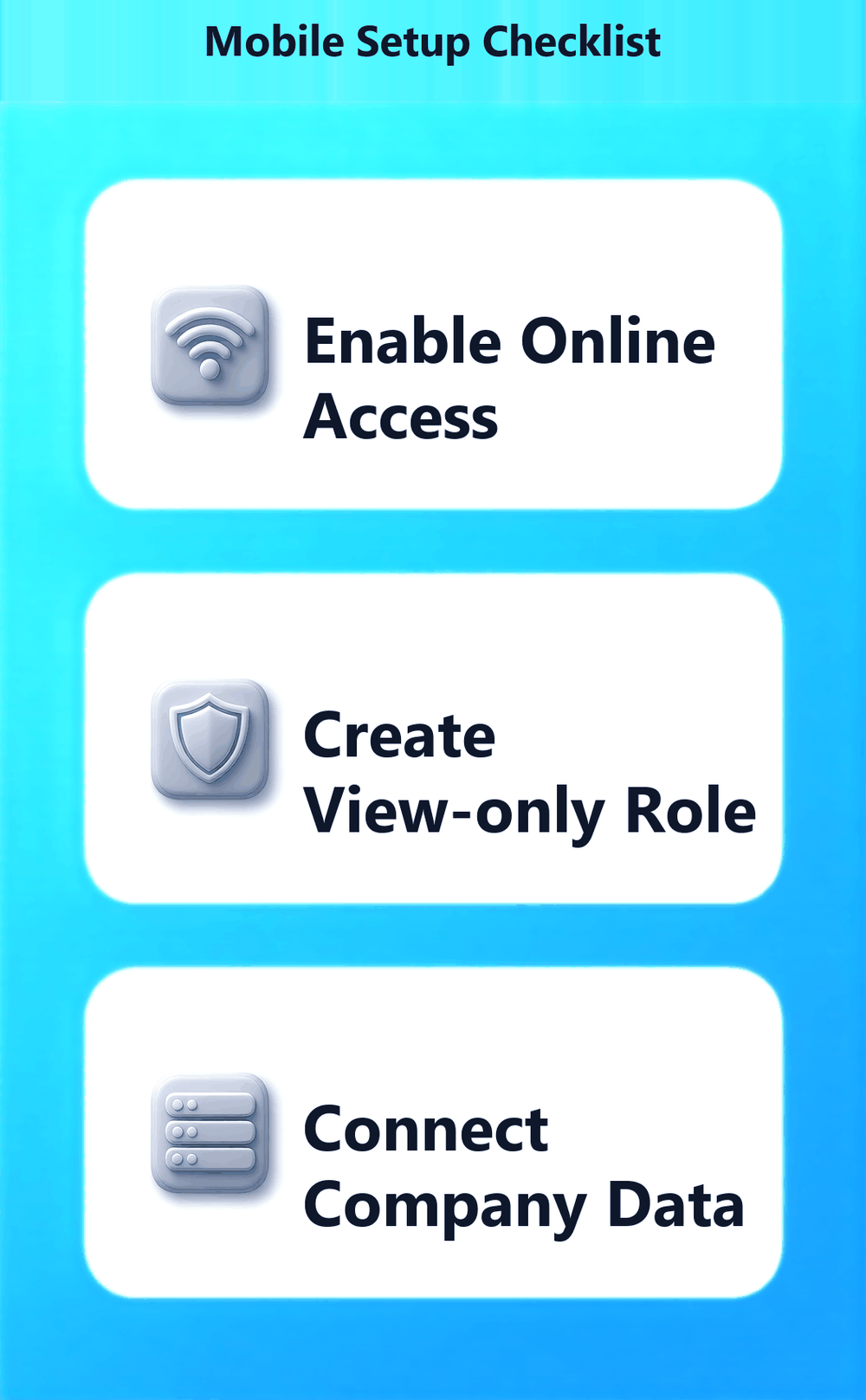
- Turn on the feature. Press F11 (Features), scroll to Online Access, and set Enable Browser Access for Reports to Yes. Save with Ctrl+A. This is a company-level setting. If you look after five companies, you repeat this in each one.
- Decide what the mobile user may see. Go to Alt+K (Company) > User Roles and create a role such as Partner View. Disallow voucher creation and alteration, and restrict any reports the person should not open. Tally tip: name roles by purpose, not by person. People change, but the purpose stays the same.
- Create the browser user. Go to Alt+K (Company) > Users and Passwords, enter the person's email ID as the username, assign the role, and allow browser access for that user. A plain name like "rajesh" will not work here. The username must be a valid email address the person can open, because login details reach them there.
- Connect the company. Press Alt+K (Company) > Online Access > Connect. The company status in the Gateway of Tally now shows it as connected. Tally tip: the same menu has Disconnect. Use it the moment an engagement ends or a staff member leaves.
- Test from a phone yourself before you hand it over. Open the browser login page linked from the official TallyPrime website, sign in with the email user, and drill down from Balance Sheet into a ledger. If the company list is empty, go back to the office computer and check that TallyPrime is open and the company is still connected.
Mistakes That Cost Indian CAs Hours
- Letting the office computer sleep. Windows goes to sleep, TallyPrime drops the connection, and the client sees nothing. Fix: Control Panel > Power Options > set Sleep to Never on the machine that hosts Tally, and keep TallyPrime open with the company loaded.
- Skipping User Access control. Without Control User Access to Company Data set to Yes, the user and role screens do not offer what you need, and browser access cannot be granted. Fix: Alt+K > Alter > set it to Yes first, then come back to users.
- Giving the client the admin login. One login shared with the client means anyone holding that phone can see and alter everything. Fix: create a separate email user with a view-only role for every person who needs mobile access.
- Expecting to enter vouchers from the phone. Browser Access is built for reports. Clients who want to raise an invoice on WhatsApp at 9 pm will be disappointed. Fix: set that expectation on day one. Data entry still happens in TallyPrime on the desktop.
- Connecting only one company of a group. The partner logs in and finds the trading entity but not the LLP. Fix: run F11 > Online Access and Alt+K > Online Access > Connect separately in every company that person must see.
Pro Tips for 2026
Before the 15 December advance tax instalment, connect the company a week early and send the partner a short checklist: Profit & Loss, then Duties & Taxes, then the cash and bank balances. He reviews the estimate on his phone and you get questions in writing, not on a late call. Second, keep a register of every browser user per client, with the date added and the date removed. When an accountant resigns in March, you will know which email to delete under Users and Passwords. Third, if a client is still on Tally ERP 9, do not promise browser access. ERP 9 offered remote access through a Tally.NET ID and its remote client, which is a different and older setup. This alone is a fair reason to plan the move to TallyPrime.
Use this infographic on your site
Free to share. Copy this code and keep the credit link.
Q: How to use Tally on mobile in TallyPrime 7.2?
Set Control User Access to Company Data to Yes under Alt+K > Alter, then enable F11 > Online Access > Enable Browser Access for Reports. Create a user with an email ID under Alt+K > Users and Passwords, connect via Alt+K > Online Access > Connect, and log in from any phone browser.
Q: Can I create sales invoices from my phone using TallyPrime Browser Access?
No. TallyPrime Browser Access is meant for viewing reports such as the Balance Sheet, Profit & Loss, Day Book, ledgers and outstandings. Voucher entry still happens in TallyPrime on the desktop. Mobile invoicing needs a separate tool.
Q: Why does my client see no company after logging in to TallyPrime on mobile?
Usually the office computer has gone to sleep, TallyPrime is closed, or the company was disconnected. Open TallyPrime, load the company and run Alt+K > Online Access > Connect again. Also confirm that TSS is active, because an expired subscription blocks the connection.
Q: Does Tally ERP 9 have browser access like TallyPrime 7.2?
No. Browser Access arrived with TallyPrime Release 2.0 and is available in TallyPrime 7.2. Tally ERP 9 used remote access through a Tally.NET ID and its remote client, which is a different setup. For phone-browser reports, the client needs TallyPrime.
Q: How long does TallyPrime mobile access take to set up?
If the licence and TSS are already in order, plan for one sitting per company: secure it, enable the feature, create a role and an email user, then connect. Most of the time goes into deciding which reports each user should see, not the clicks themselves.