Key points
- In TallyPrime 7.2, Ctrl+H changes the mode of an open voucher.
- Sales and Purchase have three modes: Item Invoice, Accounting Invoice, As Voucher.
- Only Item Invoice mode moves stock quantities in the TallyPrime Stock Summary.
- Payment, Receipt and Contra vouchers switch between Single Entry and Double Entry.
- In Tally ERP 9, Alt+I and Ctrl+V did the same mode switching.
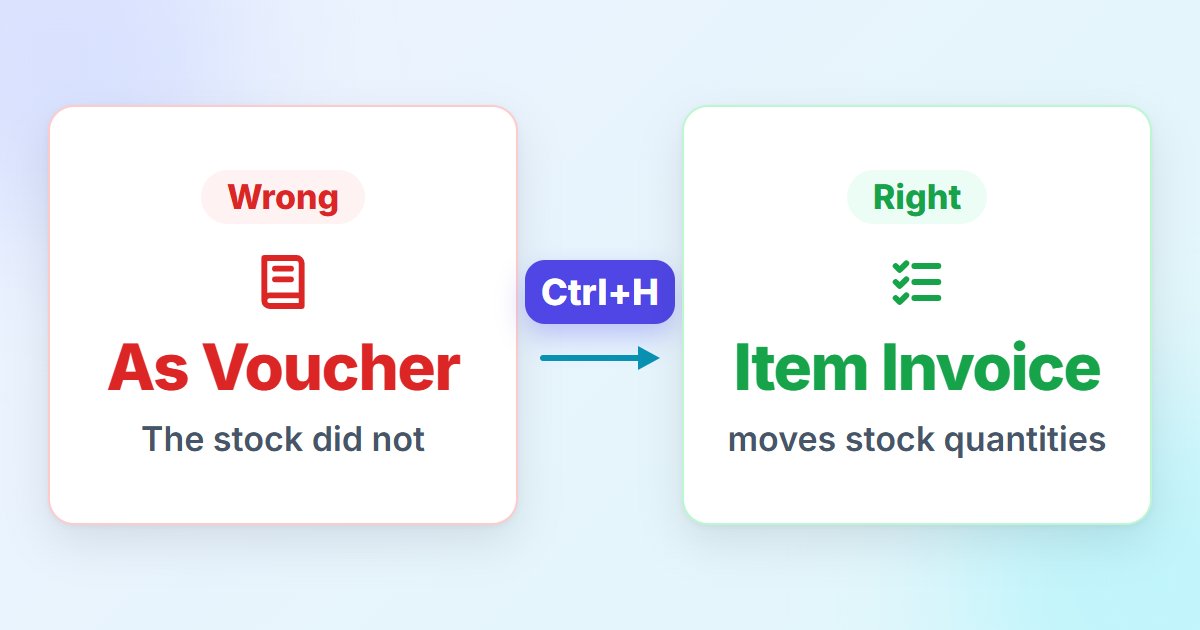
Your Stock Summary shows 200 shirts. The godown has 140. You trace the gap to one sale. Sixty pieces were billed in As Voucher mode. The ledger moved. The stock did not. One key decided that: Ctrl+H.
What is Voucher Mode in Tally Prime Voucher Entry?
A voucher mode is the screen layout for one entry. The voucher type stays the same. Only the layout changes. Item Invoice asks for stock items, quantity and rate. Accounting Invoice asks for ledgers but keeps the invoice look. As Voucher shows plain Dr and Cr lines. Think of one form printed three ways. Each version records something different underneath.
How to Change Voucher Mode in TallyPrime 7.2 — Step by Step
- Go to Gateway of Tally > Vouchers. Press F8 for Sales. Tally tip: F9 opens Purchase. Ctrl+F8 opens Credit Note.
- Press Ctrl+H, or click Change Mode on the right panel. A short list of modes appears. No Item Invoice means inventory is off. Turn it on at F11 > Inventory > Maintain Inventory.
- Pick Item Invoice for goods. Select the party, then the sales ledger. Then add stock item, quantity and rate. Tally tip: keep Inventory values are affected at Yes on that ledger.
- Pick Accounting Invoice for services like consultancy or freight. You enter ledgers and amounts only. It still prints as a proper invoice. An inventory-linked ledger here will ask for stock. Use a service ledger with Inventory values are affected set to No.
- Pick As Voucher only for adjustments with no stock. One example is moving a sale between two income ledgers. Check GST rates and tax lines yourself here.
- For Payment (F5), Receipt (F6) or Contra (F4), Ctrl+H shows Single Entry and Double Entry. Single Entry puts one bank on top, debits below. Double Entry gives free Dr and Cr lines. Tally tip: use Double Entry when two banks sit in one entry.
- Save with Ctrl+A. Then open Gateway of Tally > Stock Summary. Next open Display More Reports > GST Reports > GSTR-1. As Voucher sales often land in the uncertain transactions section.
Mistakes That Cost Indian CAs Hours
- Goods billed in As Voucher mode. Closing stock stays overstated. Fix: alter the voucher, press Ctrl+H, choose Item Invoice, add items.
- Service income booked to a goods sales ledger. Tally keeps asking for stock allocations. Fix: create a separate service ledger with inventory set to No.
- Forgetting the mode carries over. Yesterday's Accounting Invoice becomes today's default. Fix: glance at the mode before typing the party name.
- Single Entry used for a transfer across two banks. Tally will not let you add the second bank. Fix: switch to Double Entry with Ctrl+H.
- A laptop bought through Item Invoice as a stock item. The asset shows up in Stock Summary. Fix: use Accounting Invoice with a ledger under Fixed Assets.
Pro Tips for 2026
Stop relying on staff to flip modes. Create a separate voucher type called Service Sales. Use Gateway of Tally > Create > Voucher Type, with Type of Voucher as Sales. Staff then pick the type, not the mode. Second tip: scan GSTR-1 before the 11th each month. As Voucher entries hide there first. These checks work the same in TallyPrime 7.2 and 7.1, as of 19 November 2026.
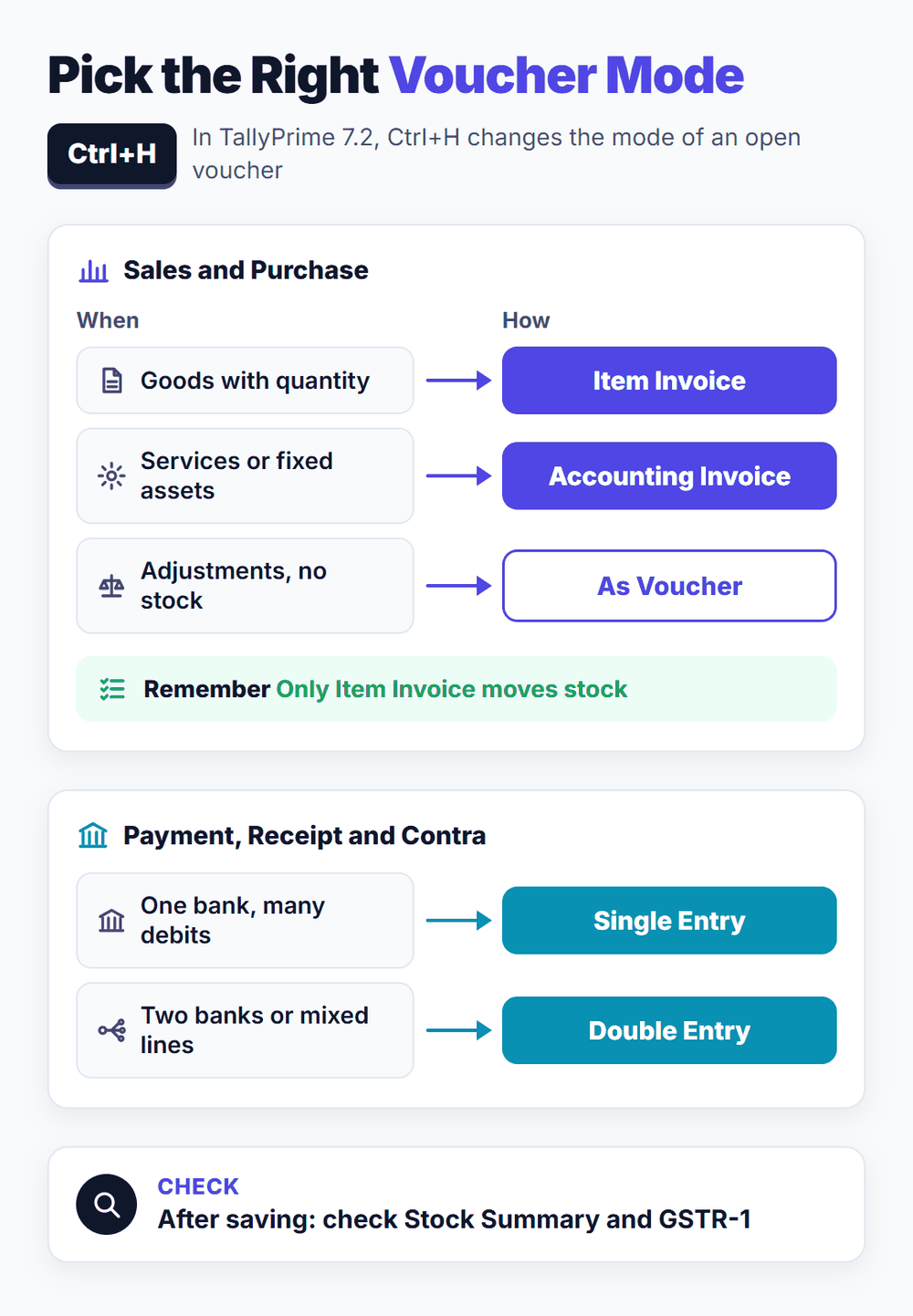
Use this infographic on your site
Free to share. Copy this code and keep the credit link.
Q: How to do Tally Prime voucher entry in TallyPrime 7.2?
Go to Gateway of Tally > Vouchers. Press F8 for Sales or F9 for Purchase. Press Ctrl+H to pick Item Invoice, Accounting Invoice or As Voucher. Fill the entry and save with Ctrl+A.
Q: What is Ctrl+H in Tally Prime?
Ctrl+H is Change Mode. It switches the layout of the open voucher. Sales and Purchase get three invoice modes. Payment, Receipt and Contra get Single Entry or Double Entry.
Q: Why is stock not reducing after a sales entry in Tally Prime?
The sale was probably entered in As Voucher or Accounting Invoice mode. Only Item Invoice moves stock. Alter the voucher, press Ctrl+H, choose Item Invoice and add the items.
Q: Voucher mode in Tally ERP 9 vs TallyPrime 7.2?
Tally ERP 9 used Alt+I for item or accounting invoice. Ctrl+V switched between invoice and voucher. TallyPrime 7.2 puts all of this under one key, Ctrl+H.
Q: How long does it take to fix vouchers entered in the wrong mode?
Each voucher must be altered one at a time. There is no bulk mode change. Find them first in Day Book filtered by voucher type. Then budget effort per voucher, not per month.