
Key points
- In TallyPrime 7.2, a GST ledger is created at Gateway of Tally > Create > Ledger, placed under the Duties & Taxes group, with Type of Duty/Tax set to GST.
- The Tax Type field on a GST ledger in TallyPrime 7.2 takes one of four values: Integrated Tax, Central Tax, State Tax or Cess, and one ledger is needed for each tax type you charge or pay.
- Leaving Percentage of Calculation at 0 on a CGST, SGST or IGST ledger lets TallyPrime pick the tax rate from the stock item or sales/purchase ledger, so one ledger handles 5%, 12%, 18% and 28% items.
- A tax ledger placed under Current Liabilities or Current Assets instead of Duties & Taxes cannot be given the GST type, so TallyPrime does not treat its amounts as GST in GSTR-1 or GSTR-3B.
- In Tally ERP 9, the same GST ledger is created at Gateway of Tally > Accounts Info > Ledgers > Create, with identical group and tax type choices.
A client's 5% invoice shows CGST at 9%. The rate on the stock item is correct. The HSN is correct. The fault is a single field on the CGST ledger that someone filled in years ago and nobody has opened since. Most GST ledger trouble in TallyPrime comes from three fields, not thirty, and the one that does the most damage is Percentage of Calculation.
What is a GST Ledger in TallyPrime?
A GST ledger is the account where TallyPrime collects the tax portion of your invoices: CGST, SGST, IGST or Cess. It does not decide the rate on its own. The rate normally lives on the stock item or the sales and purchase ledger, and the GST ledger simply receives the computed amount. Think of it as a labelled tray on the desk: the item decides how much goes in, the tray only says which tax it is.
How to Create a GST Ledger in TallyPrime 7.2 — Step by Step
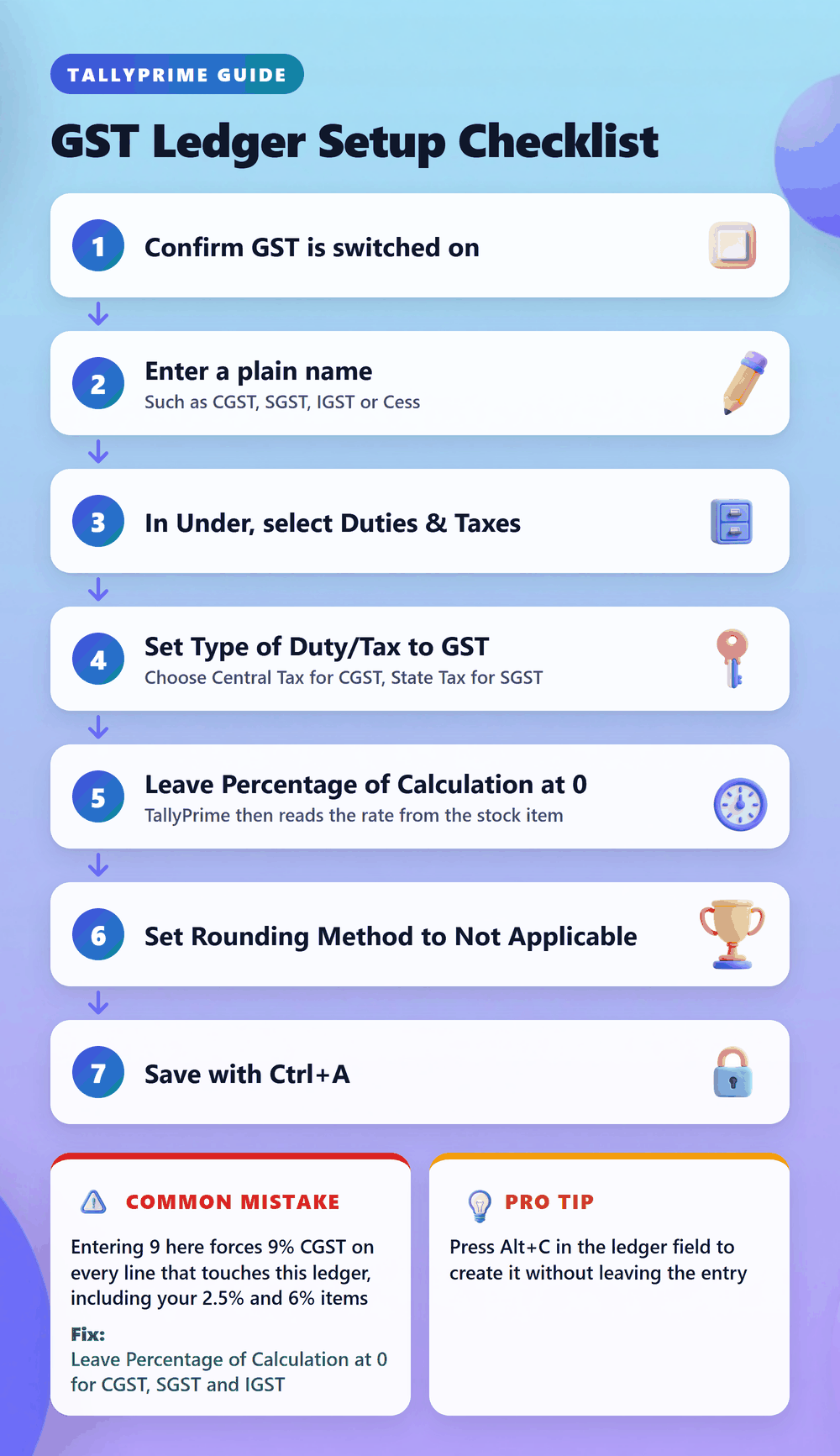
- Confirm GST is switched on for the company first. Press F11 and check that Enable Goods and Services Tax (GST) is set to Yes, then open Set/Alter GST Details and confirm the state and registration type. If GST is off, the Type of Duty/Tax field will not offer GST at all, and you will think the ledger screen is broken.
- Go to Gateway of Tally > Create > Ledger. You can also press Alt+G, type Create Master and choose Ledger. Enter a plain name such as CGST, SGST, IGST or Cess. Tally tip: if you are mid-voucher and the tax ledger is missing, press Alt+C in the ledger field to create it without leaving the entry.
- In Under, select Duties & Taxes. Typing "duti" is enough to jump to it. Do not pick Current Liabilities or Current Assets. Those groups never show the GST fields, and the ledger will behave like an ordinary account.
- Set Type of Duty/Tax to GST, then set Tax Type. Choose Central Tax for CGST, State Tax for SGST, Integrated Tax for IGST and Cess for compensation cess. Tally tip: a company registered in a Union Territory uses the State Tax ledger for UTGST; you do not need a separate UTGST tax type.
- Leave Percentage of Calculation at 0 for CGST, SGST and IGST. TallyPrime then reads the rate from the stock item, the stock group, or the GST details on your sales or purchase ledger. Entering 9 here forces 9% CGST on every line that touches this ledger, including your 2.5% and 6% items.
- Set Rounding Method to Not Applicable. The tax on each invoice should match what your supplier or customer sees to the paisa, and rounding at ledger level breaks that. If you need a round-off on the invoice total, use a separate Round Off ledger under Indirect Expenses.
- Save with Ctrl+A. Repeat for the remaining tax types by changing only the name and Tax Type. For Cess, also check the Valuation Type that appears: Based on Value for ad valorem cess, or Based on Quantity where cess is charged per unit. Tally tip: once all four exist, open Gateway of Tally > Chart of Accounts > Ledgers and filter on Duties & Taxes to see them together and catch any stray duplicates.
Mistakes That Cost Indian CAs Hours
- Putting the full rate on the CGST ledger. Someone enters 18 in Percentage of Calculation thinking of the item rate. Every invoice now charges 18% CGST plus SGST, so 36% total. Fix: open Gateway of Tally > Alter > Ledger > CGST, set Percentage of Calculation to 0, then re-accept the affected vouchers so the tax recalculates.
- Creating rate-wise ledgers such as "CGST @9%", "CGST @6%" and "CGST @2.5%" with a blank rate. This gives you six or nine tax ledgers that all behave identically, and staff pick the wrong one at random. The label then lies about the content. Fix: if you want rate-wise ledgers, fill the rate on each and apply them strictly; otherwise merge them into one CGST, one SGST and one IGST ledger.
- Choosing Type of Duty/Tax as Others instead of GST. The ledger looks right on the balance sheet, but TallyPrime does not count it as GST, so GSTR-1 throws the vouchers into the uncertain or exceptions section with messages like applicable tax ledger not selected. Fix: alter the ledger, change the type to GST, set the correct Tax Type, and check GSTR-1 again at Gateway of Tally > Display More Reports > GST Reports > GSTR-1.
- Swapping Central Tax and State Tax. It happens when ledgers are created quickly by copying. Your CGST and SGST totals still match each other, so nobody notices, until the GSTR-3B table shows tax under the wrong head. Fix: open each ledger and read the Tax Type line, not the name. The name is cosmetic; the Tax Type is what the returns use.
- Parking the tax ledger under a custom group that sits under Current Assets. Separating input and output tax is sensible, but a group called "Input GST" created under Current Assets kills the GST fields on every ledger inside it. Fix: create Input Taxes and Output Taxes as sub-groups under Duties & Taxes, then move the ledgers there.
Pro Tips for 2026
Separate input and output ledgers are a reporting choice, not a GST requirement. TallyPrime builds GSTR-1 and GSTR-3B from the voucher, not the ledger name, so a single CGST ledger works perfectly well. Split them only if your client wants to see input credit and output liability on separate balance sheet lines before the monthly set-off, which many do around the 20th when GSTR-3B is due.
When you take over a client's data, run one check before posting anything new. Open Gateway of Tally > Chart of Accounts > Ledgers, drill into Duties & Taxes, and press Ctrl+H or use the configuration to show the tax type. Any GST-looking ledger without a GST tax type, or with a non-zero percentage, is where the last accountant's mismatches came from.
If you upgraded from 7.1 to 7.2 this year, your old tax ledgers carry over unchanged. That is good news and bad news: a wrong rate set in 2019 is still wrong in November 2026. The upgrade does not clean ledger masters for you.
Use this infographic on your site
Free to share. Copy this code and keep the credit link.
Q: How to create GST ledger in TallyPrime 7.2?
Go to Gateway of Tally > Create > Ledger, name it CGST, set Under to Duties & Taxes, Type of Duty/Tax to GST and Tax Type to Central Tax. Leave Percentage of Calculation at 0 and Rounding Method as Not Applicable, then save with Ctrl+A. Repeat for SGST (State Tax), IGST (Integrated Tax) and Cess.
Q: Should I enter the rate in Percentage of Calculation on a GST ledger?
Usually no. Keep it at 0 so TallyPrime takes the rate from the stock item or sales/purchase ledger, which lets one CGST ledger handle every rate slab. Enter a rate only if you deliberately maintain rate-wise ledgers like "CGST @9%" and apply each one strictly.
Q: Do I need separate input and output GST ledgers in Tally?
No, GST rules do not require it and TallyPrime builds GST returns from vouchers, not ledger names. Separate ledgers are useful if you want input credit and output liability shown on different balance sheet lines. If you split them, put both under sub-groups of Duties & Taxes, never under Current Assets.
Q: How to create GST ledger in Tally ERP 9 vs TallyPrime 7.2?
In Tally ERP 9 the path is Gateway of Tally > Accounts Info > Ledgers > Create; in TallyPrime 7.2 it is Gateway of Tally > Create > Ledger. The fields are the same in both: Duties & Taxes group, Type of Duty/Tax as GST, the correct Tax Type, and Percentage of Calculation usually at 0.
Q: How long does it take to set up GST ledgers for a new company?
For a normal company you need four ledgers: CGST, SGST, IGST and Cess, each created by changing only the name and Tax Type. Expect a few minutes for the ledgers themselves. Fixing existing data with wrong rates or wrong tax types takes longer, because every affected voucher has to be re-accepted after the ledger is corrected.