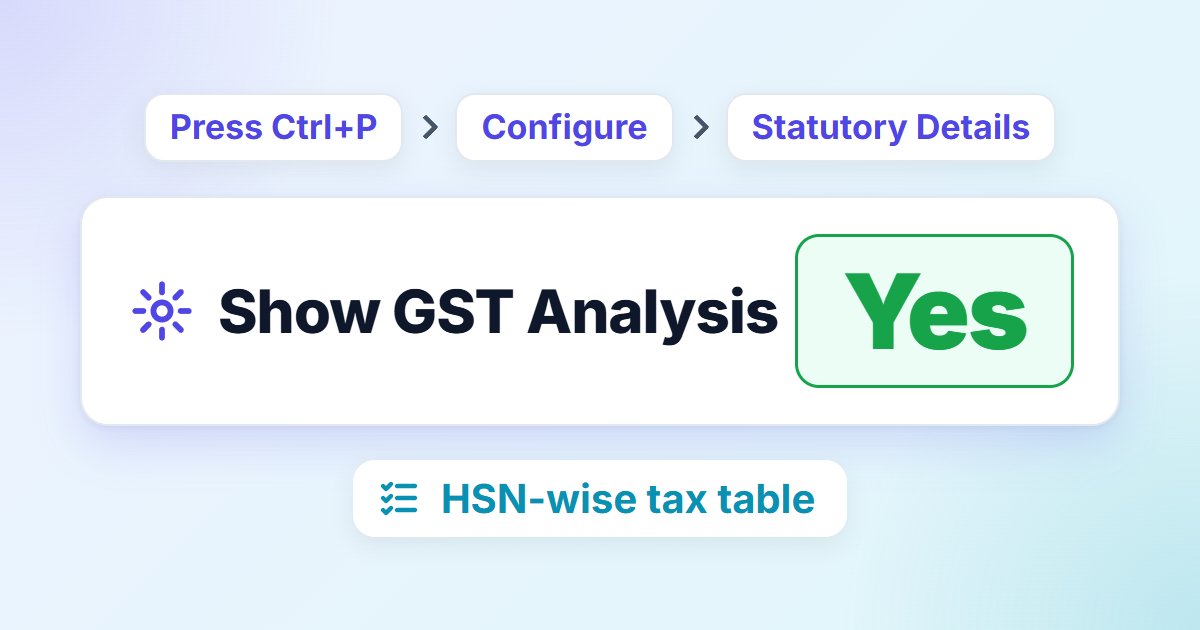
Key points
- A valid GST sale bill must carry every field in CGST Rule 46.
- In TallyPrime 7.2, press Ctrl+P on a sales voucher, then Configure.
- In TallyPrime, Show GST Analysis prints the HSN-wise tax table on invoices.
- CGST Rule 48 requires three invoice copies for goods and two for services.
- A GST invoice number must be unique per year, maximum 16 characters.
A buyer sends back your client's invoice. The HSN code is missing. The tax block shows one total, not rate-wise tax. On screen, the voucher looked perfect. On paper, it fails Rule 46. The fix is a few masters and one print screen.
What is a Perfect GST Sale Bill?
A perfect sale bill is a tax invoice that passes Rule 46. Rule 46 of the CGST Rules lists every mandatory field. Tally stores most of these fields in your masters. The print setting decides which ones reach the paper. Masters are the ingredients; the print configuration is the recipe. Miss one setting and a stored field never prints. Buyers often hold payment until a defective bill is corrected.
What Rule 46 Wants on Every Sale Bill
- Your name, address and GSTIN.
- Invoice number: consecutive, unique per financial year, up to 16 characters.
- Invoice date.
- Buyer name, address and GSTIN, for a registered buyer.
- Delivery address, if different from the billing address.
- HSN code: 4 digits up to ₹5 crore turnover, 6 digits above. This applies from 1 April 2021.
- Description, quantity and unit of goods or services.
- Taxable value after discount, plus rate and amount of each tax.
- Place of supply with state name, for inter-state sales.
- Whether tax is payable on reverse charge.
- Signature or digital signature of you or your authorised person.
How to Set GST Invoice Printing in TallyPrime 7.2 — Step by Step
- Fix your own details first. Go to Gateway of Tally > Alter > GST Registration. Check GSTIN, state and address. Tally tip: print only reads masters; it cannot add data.
- Open each party ledger. Go to Gateway of Tally > Alter > Ledger. Fill State, Registration Type and GSTIN/UIN. A blank State can charge CGST+SGST on inter-state sales.
- Add HSN on items. Go to Gateway of Tally > Alter > Stock Item. Fill HSN/SAC & Related Details. Tally tip: set HSN at Stock Group level to cover many items.
- Open a saved sales bill. Go to Gateway of Tally > Display More Reports > Day Book. Select the voucher and press Enter. Press Ctrl+P, then choose Current. Alt+P was the Tally ERP 9 key.
- Click Configure on the print screen. Go to Statutory Details. Set Show GST Analysis to Yes. Press Ctrl+A to accept. Tally tip: preview now shows HSN, taxable value, rate and tax.
- Back on the print screen, click Number of Copies. Choose 3 for goods. Pick Original for Recipient, Duplicate for Transporter, Triplicate for Supplier. Tally tip: scroll down in preview to see each copy.
- Make these settings the default inside Configure, then press Ctrl+A. Print one fresh bill to confirm it held.
Mistakes That Cost Indian CAs Hours
- Typing the buyer GSTIN in Narration. It prints in the wrong place. GSTR-1 then treats the sale as B2C. Fix: enter GSTIN in the party ledger, then re-save the voucher.
- Keeping 4-digit HSN above ₹5 crore turnover. Every bill breaks Rule 46. Fix: update each item or stock group to 6 digits.
- A long number prefix. "SFC/MUM/2026-27/00001" has 21 characters. Rule 46 allows 16. Fix: Gateway of Tally > Alter > Voucher Type > Sales, and shorten the prefix.
- Printing one copy for goods. The transporter carries nothing. Fix: set Number of Copies to 3.
- Editing a bill after its IRN is generated. The printed value stops matching the IRN. Fix: cancel the IRN within 24 hours, or issue a credit note.
Pro Tips for 2026
Export one test bill as PDF from the print screen. Tick it against the Rule 46 list above. Do this for every new client. For e-invoice clients, print only after the IRN is generated. The IRN and QR code then appear on the bill. E-invoicing covers turnover above ₹5 crore since 1 August 2023. Each 1 April, confirm numbering restarts for the new year. These rules stand as of 23 November 2026.
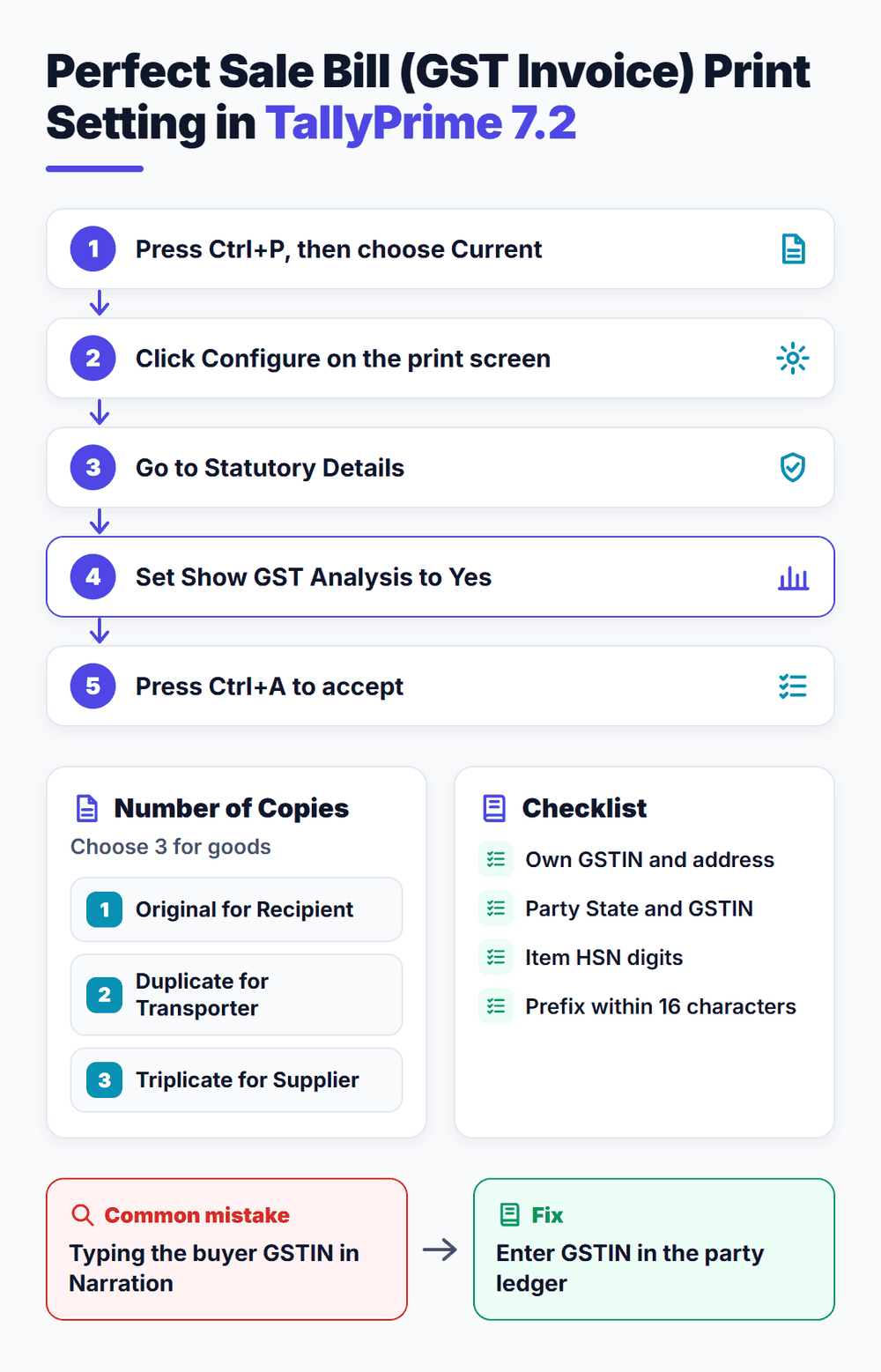
Use this infographic on your site
Free to share. Copy this code and keep the credit link.
Q: How to set GST invoice printing in TallyPrime 7.2?
Open the sales voucher and press Ctrl+P. Choose Current, then click Configure. Under Statutory Details, set Show GST Analysis to Yes. Press Ctrl+A to save.
Q: How to print Original, Duplicate and Triplicate copies in Tally Prime?
Press Ctrl+P on the sales bill and choose Current. Click Number of Copies and select 3. Pick Original, Duplicate and Triplicate. Preview shows each copy in order.
Q: Why is the HSN summary not printing on my Tally sale bill?
Two usual causes. Show GST Analysis is set to No in Configure. Or the stock item has no HSN. Fix both, then print again.
Q: Sale bill printing in Tally ERP 9 vs TallyPrime 7.2?
In Tally ERP 9, press Alt+P, then F12 to configure. In TallyPrime 7.2, press Ctrl+P, then Configure. The Rule 46 fields required are the same.
Q: How long does Tally invoice print setup take?
The print setting takes one sitting per company. Masters take longer, since each item needs HSN. Once done, every sale bill prints the same way.